
Restart your phone and hope. That's the most popular advice for Talk to Text not working, and it's a poor first move.
A restart hides which part failed. You lose the one clue that matters, whether nothing typed at all or text appeared with the wrong name, amount, or date. Those are two different problems with two different fixes, and the second one is worse because you can send it to a client before you notice.
Don't reset first. Match what you see to one cause, run one short test, and fix only that row.
Table of Contents
Match the Symptom to the First Fix
Treat silence and wrong text as separate failures. If the cursor never moves, the phone didn't hear you, dictation is off, or the audio never reached the recognizer. If a clean sentence appears with a wrong dollar amount, the phone heard something and guessed.
That split saves time. Permission checks won't fix a guessed number. Editing a guessed number won't fix a blocked microphone.
Read the Row Before You Touch Settings
| What you see | Likely cause | First fix |
|---|---|---|
| No characters at all | Microphone blocked or dictation off | Allow the mic for the keyboard and app, then turn dictation on |
| Microphone key missing | Wrong keyboard or dictation disabled | Switch to the system keyboard and enable dictation |
| Words in another language | Dictation language does not match speech | Set the spoken language in keyboard or dictation settings |
| Text stops after a few words | Weak Wi-Fi or cellular path to cloud recognition | Toggle Wi-Fi and cellular, then retry one short sentence |
| Garbled words in a quiet room | Covered mic, thick case, or wrong input | Clean the mic, remove the case, and test on the handset |
| Only one side of a call is written | Audio routed to Bluetooth, speaker, or car | Repeat the same sentence on the handset, then on the headset |
| Fluent text with a wrong name or amount | Recognizer guessed through unclear audio | Say the name, number, and date again and read them back |
Start with the top three rows if you get no text. A missing microphone key usually means you're on a third-party keyboard that doesn't show the system dictation key, or dictation itself is disabled. Switch back to Apple Keyboard on iPhone or Gboard on Android before you dig deeper.
If words come out in another language, don't change the phone's display language. Change the dictation language or the active keyboard language, since that's what the recognizer listens for. Extra keyboards you never speak only give it more ways to pick wrong.
When Text Starts, Then Dies
Text that stops after a few words often points to the network path. Many phones still send audio to a cloud recognizer for some languages and models, so a weak Wi-Fi or cellular signal produces a stall, not an error message. Toggle the connection, move to a stable signal, and retry one short sentence.
Garbled words in a quiet room point closer to the phone. Check for a case covering the bottom microphone grille, lint in the mic opening, or audio routed to earbuds sitting in a bag. Remove the case and test on the handset alone.
Practical rule: Don't move to the next row until the current row passes or fails clearly. Guessing across rows turns a five minute check into a reset loop.
The last two rows are about calls, not quiet-room dictation. If only your side is written, the other voice may be going through Bluetooth, speakerphone, or car audio that the dictation input never receives cleanly. If the sentence reads smoothly but the figure is invented, you don't have a settings problem, you have a verification problem.
For a quick stop point, use the ten-second handset test explained next. Say your full name, a street number such as 1480, and today's date once, at normal pace, with the phone a hand's width from your mouth. If all three come back exact, the handset path works and you should look at noise or call audio. If any one is wrong, stay on the row you matched.
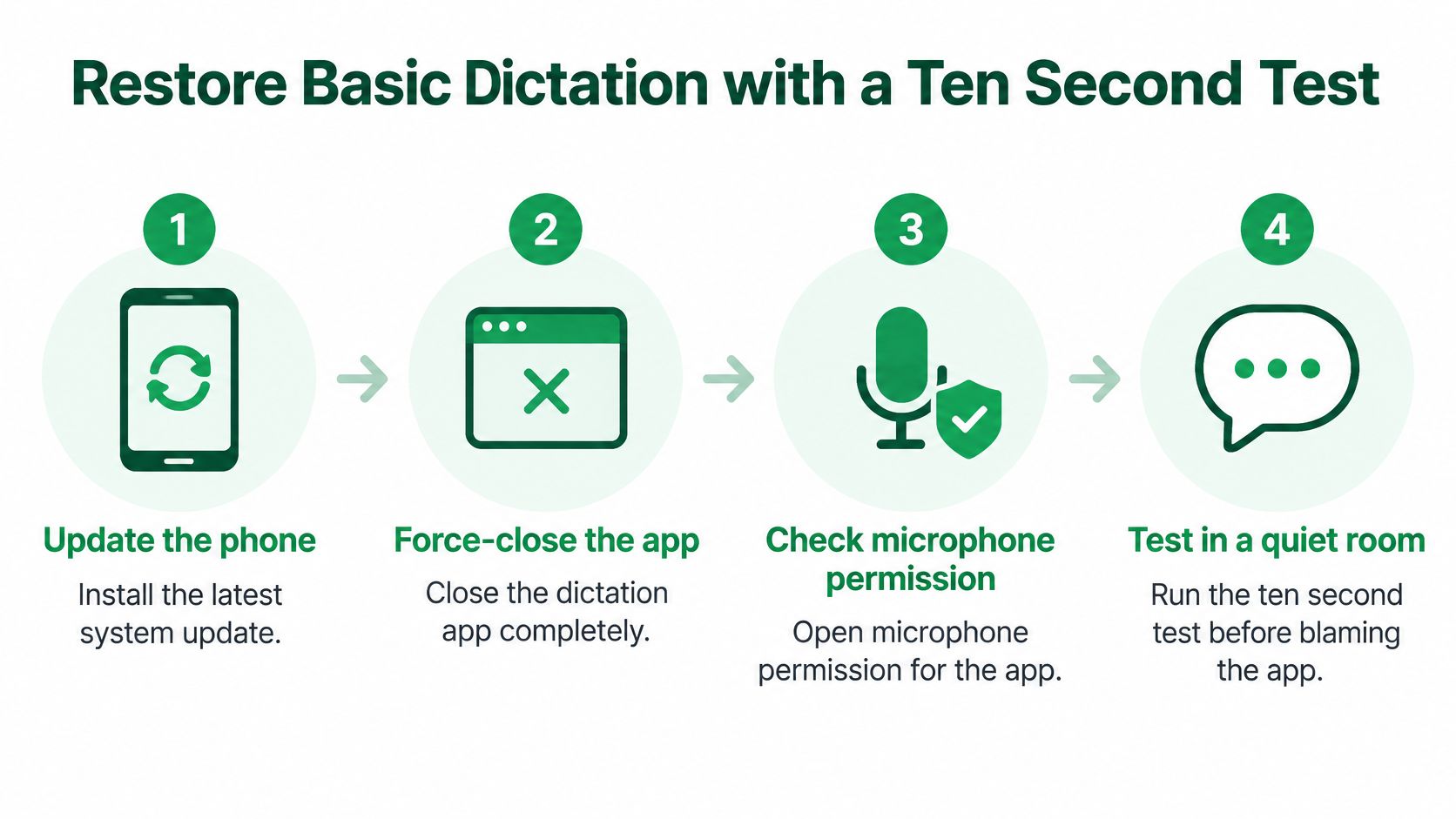
Restore Basic Dictation with a Ten Second Test
Run this once, on the handset, in a quiet room. Don't use earbuds, speakerphone, or the car for the first pass. You need the simplest audio path before you blame any app.
Set the Phone Up for a Fair Test
- Update and close: Install any pending phone update, then force-close the app where dictation failed. Updates patch dictation bugs, and a stuck app can hold a bad audio session.
- Allow the microphone: Open microphone permission for that app and for the keyboard and set it to Allow, not Ask or Never. If another app is recording or on a call in the background, close it, since only one app can capture the mic cleanly at a time.
- Turn dictation on: On iPhone, open Settings, General, Keyboard, and confirm Enable Dictation is on. On Android with Gboard, open keyboard settings and confirm Voice typing is on. Use the system keyboard for the test so the microphone key is the built-in one.
- Set the spoken language: Pick the language you'll speak in dictation settings. Remove extra languages if the phone keeps switching between them.
- Get a stable connection: Join reliable Wi-Fi or strong cellular. Cloud recognition can type nothing or stall when you're offline, which looks like a broken keyboard.
If the Enable Dictation switch is greyed out on iPhone, check Screen Time restrictions under Content and Privacy Restrictions. Managed work or school phones often block dictation there, and no restart will override it.
Before you speak, it's worth separating a bad microphone from a bad recognizer. You can check audio quality before recording with a short voice memo. If that memo sounds muffled or silent, clean the mic opening, remove the case, and disconnect Bluetooth devices first.
Run the Same Sentence Every Time
- Say the test: Hold the phone a hand's width from your mouth. Say your full name, a street number such as 1480, and today's date, once, at normal pace. Don't slow down or spell anything.
- Judge the three details: Pass means name, number, and date are all exact. Close isn't a pass for client work, because those are the details you'd send.
- If it fails, restart once: Restart the phone, then repeat the exact same sentence in the same room. Changing the sentence each time tells you nothing.
- If it still fails, change the app: Try the built-in Notes app on iPhone or a plain notes app on Android. If dictation works there, the first app is the problem. If it fails there too, it's a system, permission, language, or hardware issue.
- Proper names: Client, spouse, beneficiary, lender, and street names are often the words the recognizer knows least.
- Money and policy numbers: Verify every dollar figure, premium, rate, account number, and policy number digit by digit.
- Addresses and dates: Confirm street numbers, unit numbers, closing dates, renewal dates, and times.
- Agreed actions: Confirm who agreed to send, sign, pay, or call, and by when.
- At a desk: Face the phone mic toward you, not the ceiling, and keep it within arm's reach. A speakerphone across the desk picks up the room as much as your voice.
- In a shared room: Ask other voices to pause for names and numbers. Two people talking at once gives the recognizer no clean signal to choose.
- In a café or street: Turn away from music and traffic, shield the mic from wind, and move closer rather than speaking louder. Shouting into a phone mic distorts as often as it helps.
- In a car: Wait for a quiet stretch before dictating an address or amount. Road and wind noise compete directly with speech, and car kits vary a lot in mic quality.
- Ordinary notes to yourself: Keep dictation, run the ten-second test when something changes, and read back the name, figure, and date before you save.
- Client calls you must document: Transcribe the call itself rather than dictating a recap afterward. A recap is written from memory and loses exact wording, which is the point of sound phone call recording and documentation for client files.
- Shared or mobile calls: Use the handset or a close headset, ask the other person to pause before a figure, and repeat that figure back before you move on.
A restart that works until your next call isn't a fix. It means basic dictation is fine and the failure lives in call audio.
I would stop after one restart and one app-swap. Repeated resets rarely teach you anything after that, and they burn time you could spend testing the handset against your headset. Keep the test sentence in your notes so every future check uses identical words.
Catch Wrong Words Before You Send Them
Fluent text isn't proof that dictation worked. A recognizer can produce a tidy, grammatical sentence with the wrong client name, a premium off by a digit, or a date shifted by a day. For professional calls, that's a failure equal to no text at all.
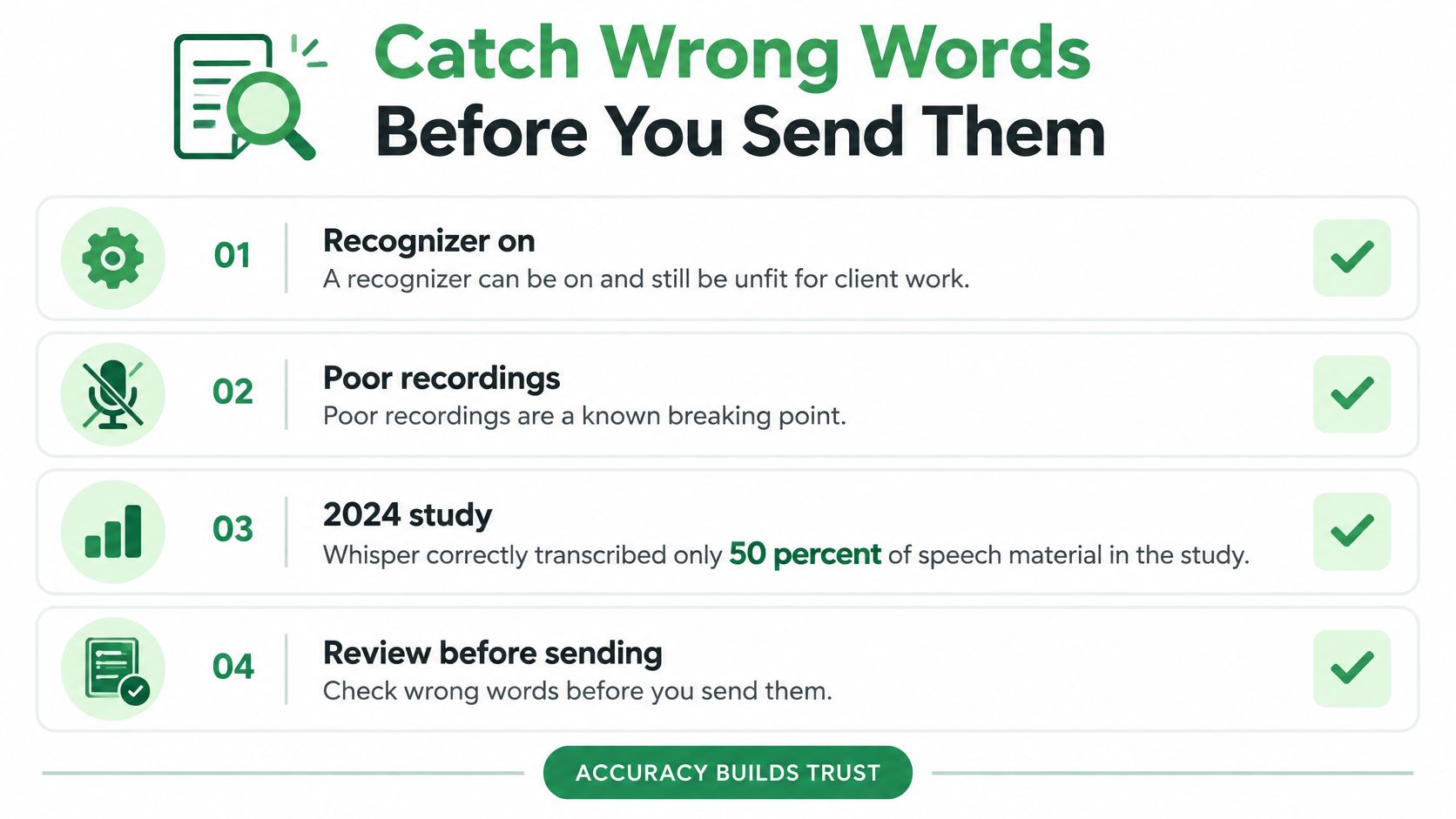
Poor audio makes this more than a rare slip. A 2024 Frontiers in Communication study found that Whisper correctly transcribed only 50% of speech material in poor-quality, forensic-like audio. You don't need forensic audio on a phone to lose key details. A covered mic, a distant speakerphone, or a caller on a noisy line can be enough.
The older evidence points the same way. The NIST analysis of the DARPA Communicator spoken-dialogue systems found a roughly linear relationship between word error rate and task completion. In plain terms, as more words go wrong, fewer tasks get done right, even if text still appears.
Check Four Fields Every Time
Don't reread every word with equal care. Check the parts that can cost money or trust.
Read those four back during the conversation, not after you hang up. Say, "I have $1,480 on the 14th, and you'll send the void cheque today, correct?" The other person can fix a wrong figure in seconds. After the call, you're editing from memory.
Don't trust smooth grammar either. Strong systems can fill a gap in unclear audio with fluent words instead of leaving a blank. A sentence that reads well can still invent the detail you needed most.
Accents, fast speech, and speaking in a second language raise the risk further. A test that passes in your voice can fail in a caller's voice, which is why your own quiet-room test doesn't clear client audio. If you're logging phone calls for client files, treat the caller's side as unproven until you've checked it.
Use a Thirty Second Sample
Before you rely on dictation or any transcription tool for client work, run a short sample with one name, one dollar figure, one address, and one next step. Read all four back from the text. If any one is wrong, fix the audio conditions rather than hand-editing the same kind of error all day.
Quote the risky line in your follow-up message as well. Writing "Confirming $1,480 due May 14" gives the client a chance to correct you before money moves. Silent confidence gives them no chance at all.
Tell Call Audio Failures from Dictation Failures
Quiet-room dictation and a live phone call are different jobs. Dictation assumes one person, close to one microphone, speaking one language. A call adds a second voice, telephony compression, a Bluetooth hop, and sometimes a language switch mid-sentence.
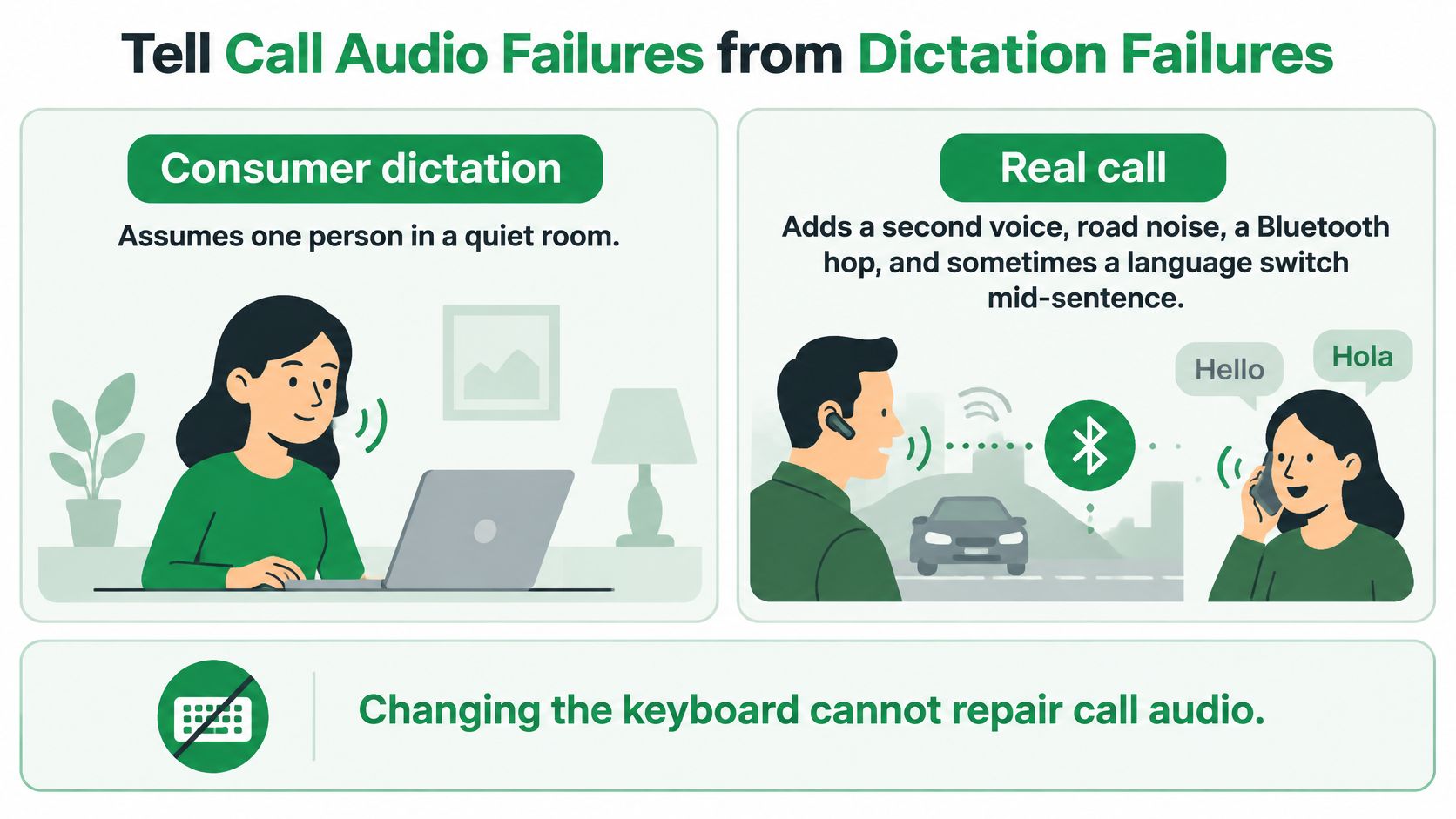
That gap explains a lot of Talk to Text not working complaints during calls. A 2025 evaluation in the ACL Anthology notes that naturally occurring conversation combines overlapping speakers, varied ages and accents, noisy environments, and suboptimal recording equipment, all factors that reduce automatic-speech-recognition accuracy. Changing your keyboard can't repair that audio path.
Run Four Comparisons in Order
Use the same name, number, and date sentence for each test. Changing the words between tests hides the variable you're trying to isolate.
| Test | If it passes | If it fails |
|---|---|---|
| Quiet voice memo of name, number, and date | Mic and recognizer work | Permission, keyboard, language, or hardware |
| Same sentence on the handset speaker | Handset mic path is fine | Case, blocked mic, or wrong input |
| Same sentence on earbuds or car audio | Accessory path is usable | Bluetooth profile or car kit |
| One speaker repeats a name and a number alone | Key facts can be captured | Overlap, noise, or accent is corrupting them |
| Short phrase in the second language | That language is recognized | A keyboard locale change will not fix call audio |
Start with the voice memo. If that memo transcribes cleanly, your mic and recognizer work, and you should stop changing keyboard settings. Move to the handset speaker, then to earbuds or the car, one step at a time.
If the memo is clean and the call isn't, the call path is the problem. That includes how the call reaches your phone, which is why your call forwarding and routing setup matters more for documented calls than which keyboard you tap afterward.
Isolate Overlap and Language Switching
Next, ask one person to speak alone. Have the other caller pause, then repeat a name and a number by themselves. If that clean repeat works but normal back-and-forth doesn't, overlap ate the words, not the software settings. Build a pause before every figure into your call habit.
Do the same for a second language. Say a short phrase with a name and a number in that language only. If your first language passes and the second fails, a display-language toggle won't solve a telephony or recognition problem in that stretch of audio. Repeat critical facts in one language at a time and read them back.
If a voice memo is exact and the same sentence on a call is garbled, stop resetting the keyboard. You've already proved where the failure lives.
I would trust this comparison over any single successful dictation. One good result can be luck with a quiet moment. Four tests with the same sentence show you which link in the chain breaks.
Keep Accuracy Up When You Move or Share a Room
Movement turns a working recognizer into a partial one. The phone didn't change. The signal reaching it did.
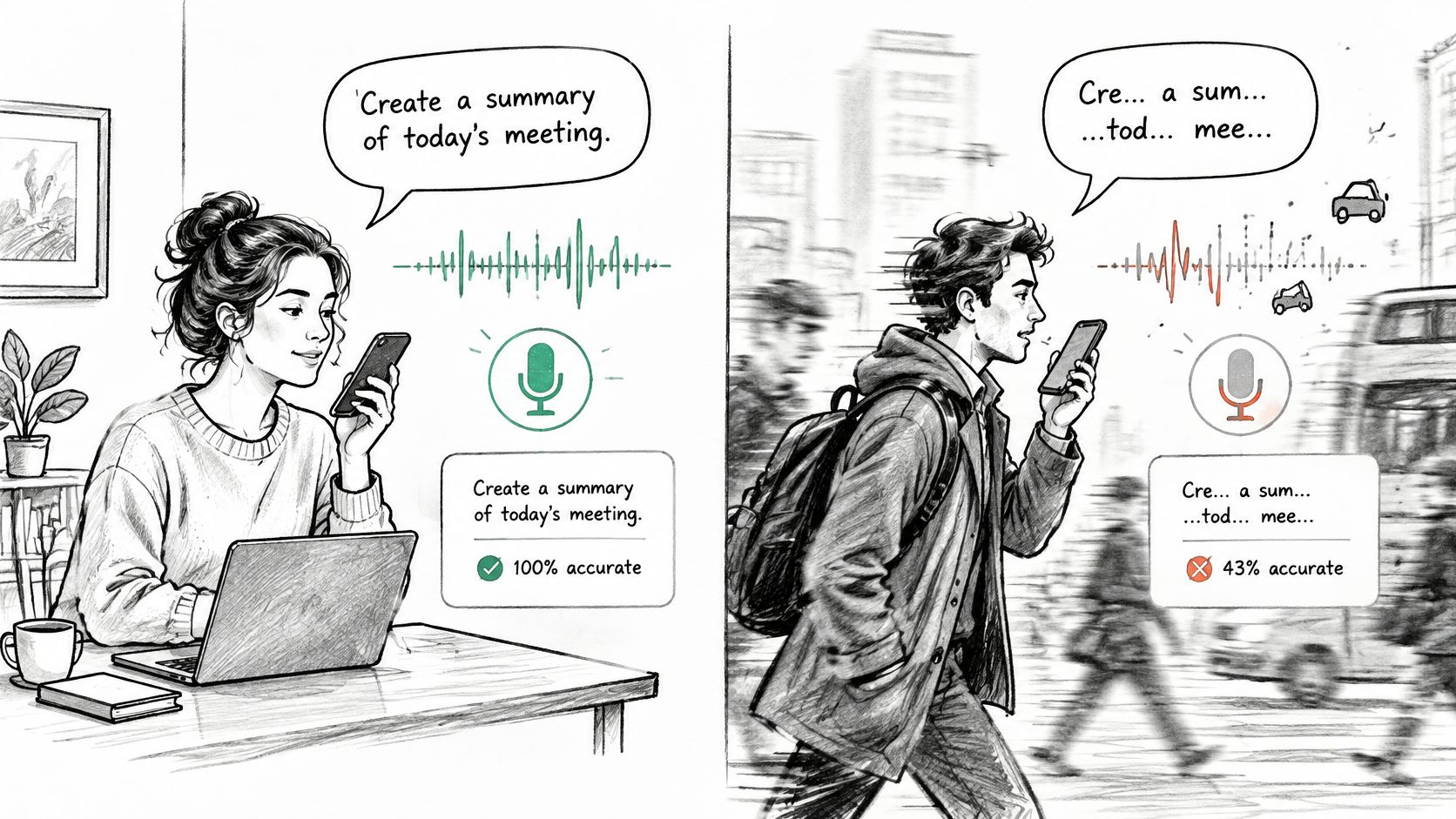
A 2024 study of automatic transcription in Survey Practice found that recordings containing background noise had a 2.08-times higher word error rate than recordings without background noise, and background noise was the only tested factor that significantly predicted word error rate, with p<0.001. In a naturalistic study cited there, recognition accuracy fell by an average of 5% when users became mobile with a noise-canceling microphone and by 15% with a lower-end microphone.
Match the Setup to the Place
Treat a desk, a café, a shared office, and a car as different jobs. What passes at a desk often fails on the road for reasons that have nothing to do with permissions.
Prefer the handset or a close headset over a distant speaker whenever the words matter. Headset quality matters too, so if you're choosing hardware for noisy rooms, it helps to compare AEC and noise reduction before you blame the dictation engine for what the mic delivered.
Protect the Handoffs
Take the case off if it covers the bottom grille, and check that your fingers aren't over the mic when you walk. Those small blocks explain a lot of problems that come and go with how you hold the phone.
When you switch from earbuds to handset, or from car audio to phone, repeat the last figure. Don't assume text survived the handoff, since the input changed mid-thought. The same applies when someone else starts speaking. Pause, let one voice finish, then say the figure alone.
These habits won't fix a denied permission. They do explain why the same phone works at your desk at 9 a.m. and fails in a parking lot at noon.
Choose the Right Record for Client Calls
If your handset test passes in a quiet room and client calls still lose details, stop resetting the keyboard. You've proved dictation works for a voice you narrate yourself. A live call is a different record with a second voice you don't control.
Choose by what's at stake in the words.
Whichever route you pick, quote the risky line in your follow-up so the other person can correct it. That one habit catches errors no setting can prevent.
If your phone can't transcribe calls on its own, a call-transcription app such as VoxNote is one option to evaluate. VoxNote is currently available only on iPhone, and an Android version is not yet available. Once call forwarding is connected, we transcribe every incoming and outgoing call on your existing phone number with nothing to press during the call, and we work with AirPods and other Bluetooth audio devices without interrupting the recording when you switch devices mid-call.
Test any option, including ours, against the same standard before client work. Run one name, one figure, one address, and one next step, then check all four. A tool that can't pass that sample in your real call conditions isn't ready, no matter how clean its demo looks.
If dictation keeps failing you on the calls that matter, visit VoxNote to see how automatic transcription of incoming and outgoing calls on your existing iPhone number can give you a written record without pressing anything mid-call. Bring your toughest test, a name, a figure, an address, and a next step, and judge the transcript against those four fields before you rely on it.