Try for free

Claude integration

Connect VoxNote to Claude.

Here's how to connect your VoxNote call transcripts to Claude, in 7 steps.
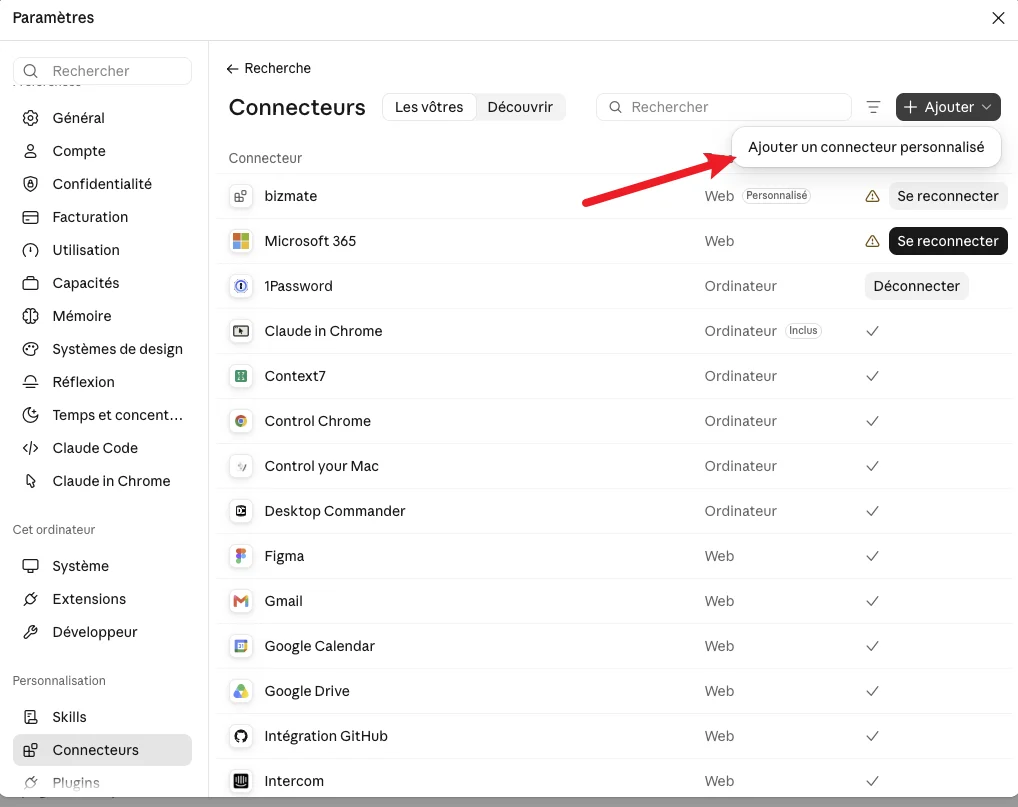
  1. In Claude, open Settings, then Connectors.
  2. Click Add, then Add custom connector.
    Claude Connectors settings with the Add menu open and Add custom connector highlighted
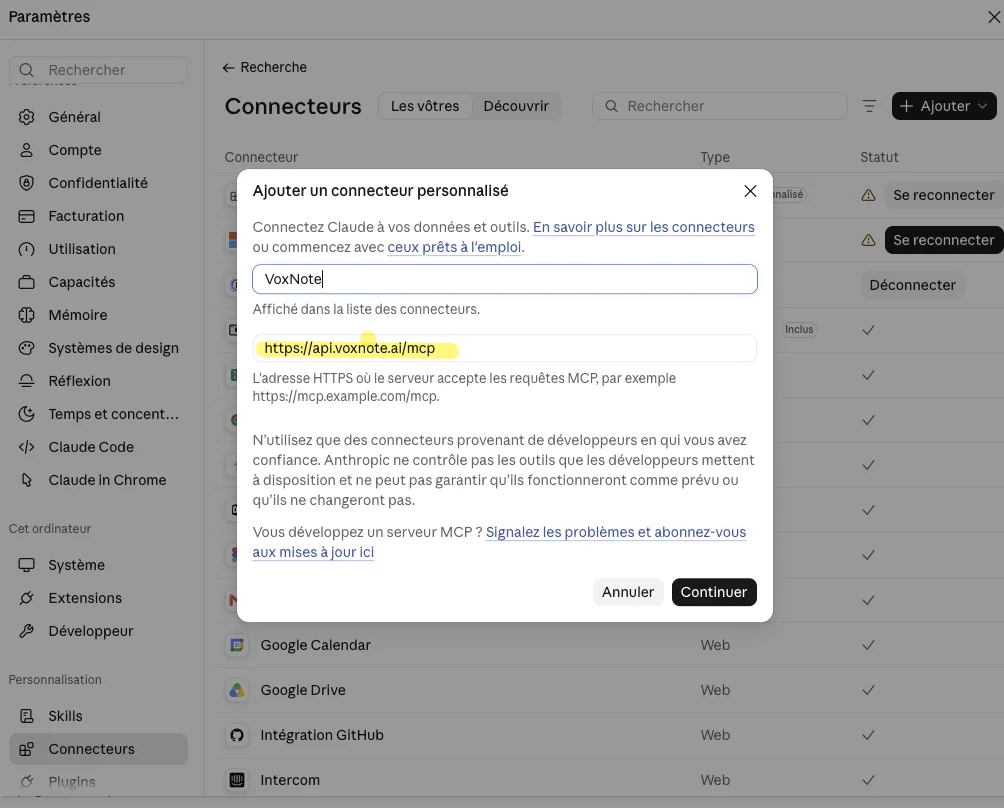
  3. Name it VoxNote.
  4. Paste this URL: https://api.voxnote.ai/mcp
    Add custom connector form in Claude with the name VoxNote and the URL https://api.voxnote.ai/mcp
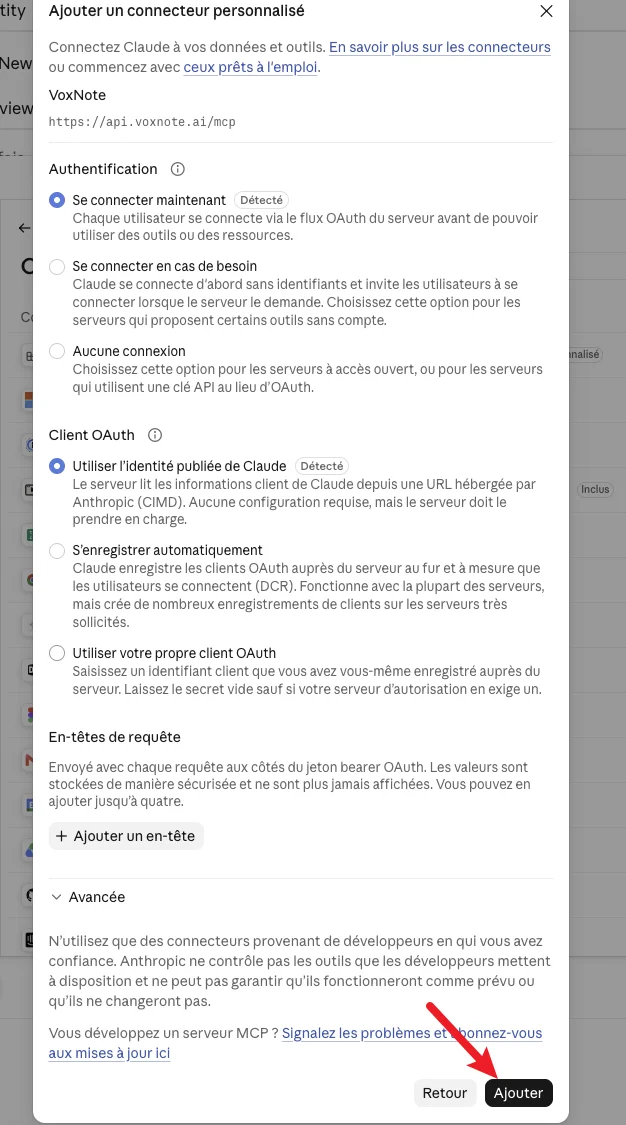
  5. Click Continue, leave the default options as they are, then click Add.
    Claude custom connector options left at their defaults, with the Add button highlighted
  6. Sign in with your VoxNote account (the same one as your mobile app). If you're not sure which email address is linked to your account, you can find it in the mobile app settings, under Account.
  7. Accept all connection permissions in the browser.

Then ask anything about your calls.

You can now ask Claude whatever you want about your phone calls. For example:

"Go through my VoxNote calls from this week and flag the business opportunities I missed."

Try VoxNote free for 7 days.

Keep your number, connect once, and get your first call summary by email.