
You've finished a client call, but the follow-up is still scattered across your phone, a handwritten note, and your memory. Before you can move on, you need to find the client in your CRM, record what they agreed to, and set a reminder. Connecting your call app sounds like the answer, but only if the information reaches the right person's record without exposing more than it should.
Table of Contents
What a CRM Integration API Does for Your Records
A CRM integration API is a set of rules that lets authorized software read and write customer relationship management records. It allows a call app to create a note or update a client's information without someone retyping everything into the CRM.
The API isn't the entire integration. It's the doorway the integration uses, while the surrounding software decides what to send, where to put it, and whether the transfer succeeded.
The basic terms in everyday language
You'll meet these terms in almost any CRM's developer documentation:
- Endpoint: A named address for a type of record, such as contacts or tasks. Think of it as a labeled filing drawer.
- Request: An instruction sent to that address, such as creating an activity. It's the note you ask someone to file.
- Response: The CRM's answer, confirming success or explaining an error. It's your receipt.
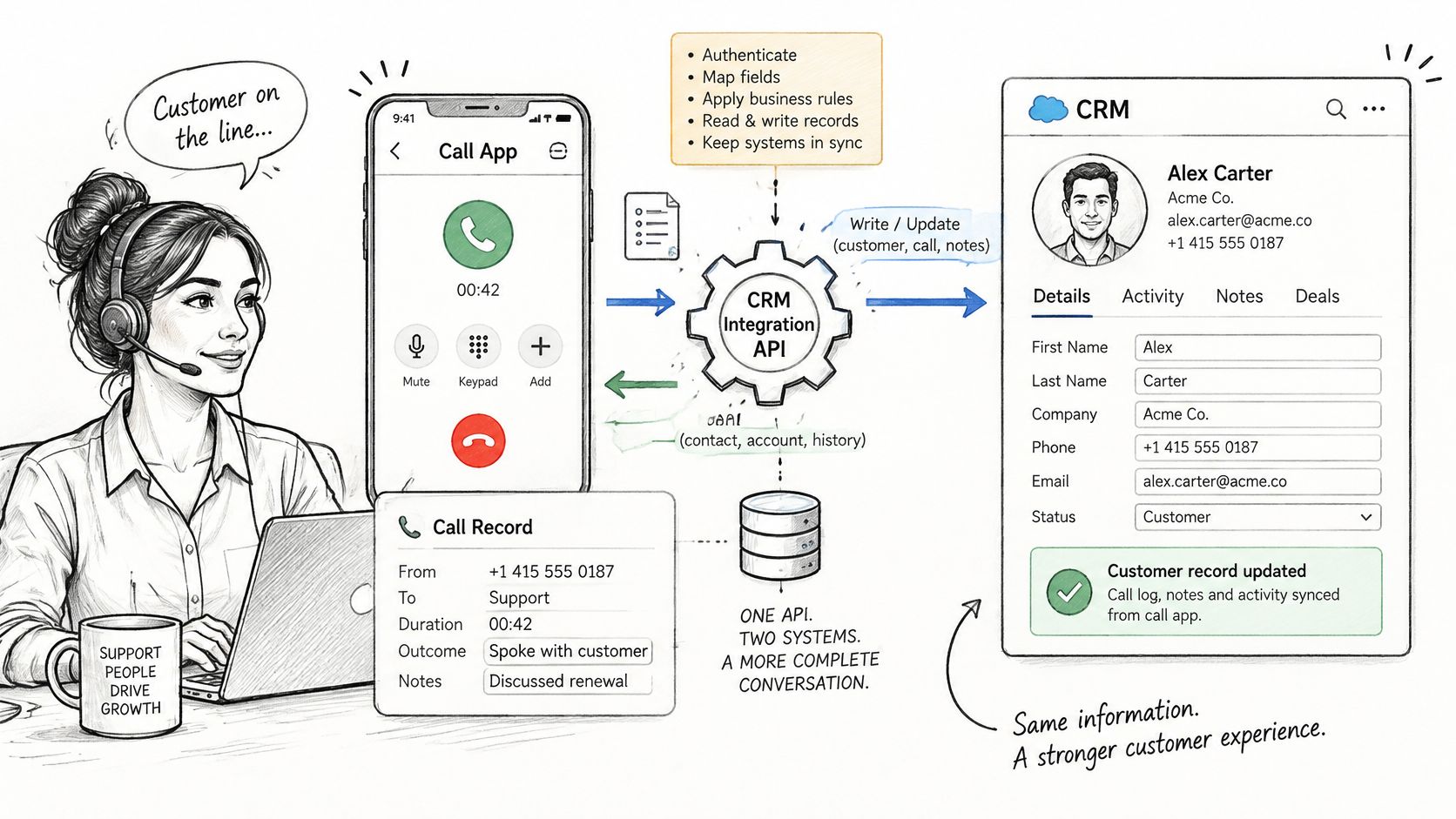
Say an advisor finishes a loan-renewal call. Once the summary is ready and approved, the integration can attach the discussed figures, requested documents, and next appointment to the client's record before the advisor starts their next meeting.
The connection looks simple from the advisor's side:
Why access to records matters
Without that connection, someone maintains separate copies of the conversation. A correction in the call app won't automatically fix a note already pasted into the CRM. The next advisor may work from an outdated version.
APIs made this kind of machine-to-machine access possible long before today's call tools. As Nordic APIs explains in its Salesforce API history, Salesforce launched its SOAP API in 2000, allowing outside software to interact programmatically with CRM records and functionality.
For teams deciding how records should support their sales process, Wisely's resource on how to connect sales workflows through monday.com CRM offers a workflow-focused starting point.
A successful connection isn't enough. The useful result is an accurate entry in the record your team uses.
How Data Flows from a Call to Your CRM
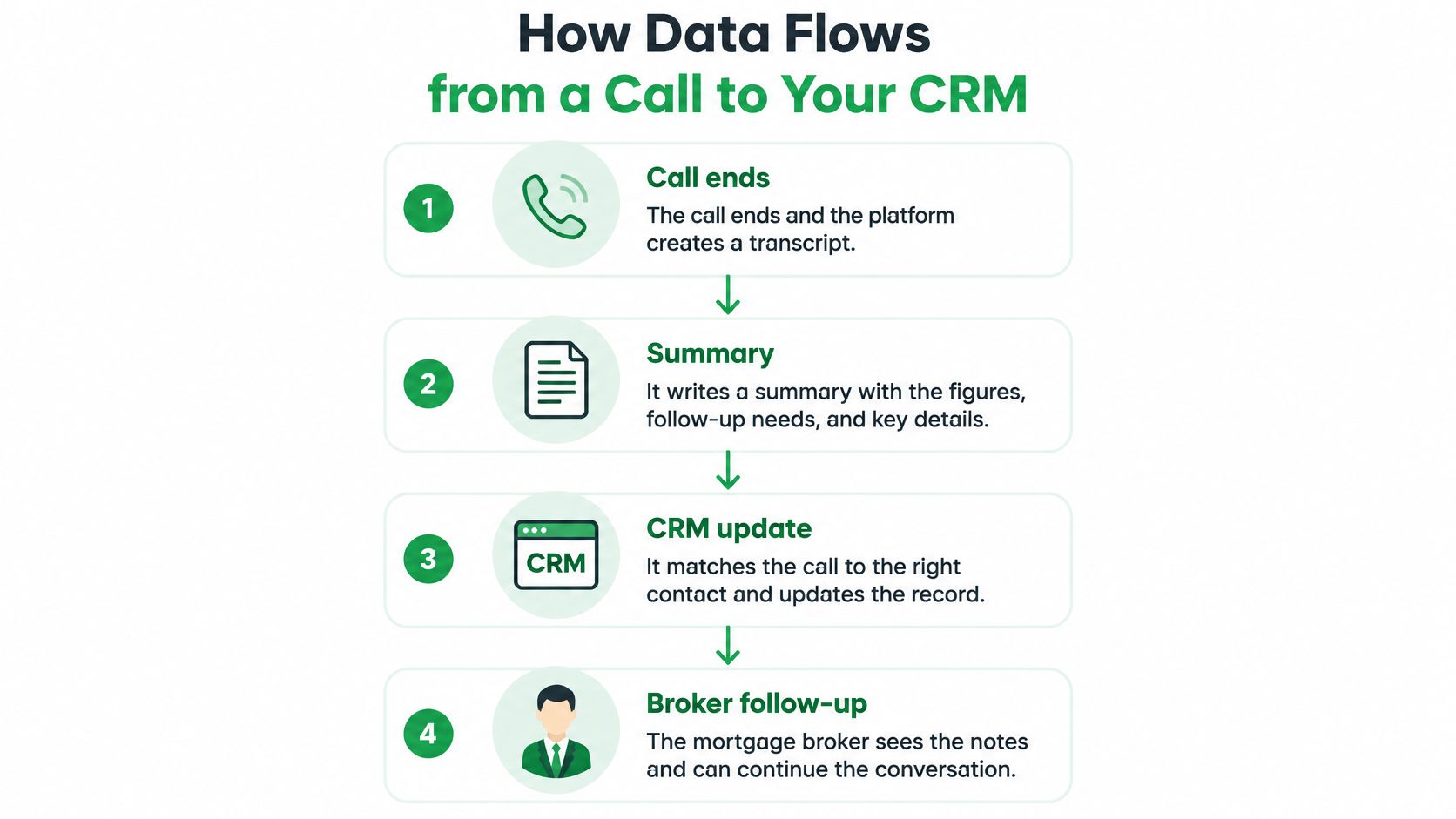
Follow a mortgage broker's renewal conversation. The client discusses their plans, agrees to provide documents, and asks the broker to follow up after reviewing them. Turning that conversation into useful CRM information requires several distinct handoffs.
This flow shows the route from conversation to follow-up:
From spoken words to structured information
The call platform first produces a transcript, a written version of the conversation. It then prepares a summary, which selects the relevant details rather than copying every exchange.
Those aren't interchangeable. A transcript preserves conversational context, while a summary helps the broker find decisions and actions. Neither should turn uncertainty into certainty: a client considering a renewal hasn't necessarily agreed to proceed.
Next, the integration looks for the associated client. A caller's phone number can help locate a contact, but the integration must also identify the correct organization and record owner. If a household shares a number, an automatic match may need human confirmation.
Once the match is confirmed, the integration writes the appropriate entries. The broker's requested documents become a task, while the conversation itself becomes a dated activity.
Each CRM object has a different job
An object is a category of CRM information. Contacts hold people, activities hold interactions, tasks hold work to do, and opportunities hold potential business.
A tempting mistake is putting every call summary into a contact's general notes field. That can overwrite previous context or make separate conversations difficult to distinguish. A dated activity linked to the contact gives the conversation its own place in the history.
Call data and the CRM object that receives it
| Call data | CRM object | Example |
|---|---|---|
| Caller phone number | Contact record | Matches the client by phone number |
| Call summary | Activity or note | Figures and decisions from the call |
| Next steps | Task | Follow-up with a due date assigned to the advisor |
| Call date, time and duration | Activity log | Timestamp shown in the client history |
| Agreed next step | Opportunity | Stage updated after the client agrees to proceed |
The relationships between these entries matter too. A task should point to the relevant contact and, where appropriate, the existing opportunity. Creating an unrelated task somewhere else in the CRM doesn't give the broker a complete client view.
For practical recordkeeping guidance, our guide to logging phone calls helps distinguish a useful call entry from a loose collection of notes.
The accompanying video provides another way to approach the workflow:
Copy the table into a mapping document before building anything. Add your CRM's actual field names, who owns each task, and which actions require approval. When the broker opens the client record, they should see the conversation, requested documents, and due date together.
REST, SOAP, GraphQL and OData Compared
Start with your CRM's developer documentation. Choose REST as the default when it supports the records and actions you need, but use another interface when the CRM documents it as the appropriate route.
These styles describe how applications exchange instructions. They don't determine whether your organization should send a transcript or whether a user may change an opportunity.
Integrate.io's API integration overview describes REST, SOAP, GraphQL, and OData among the interfaces available across CRM integrations, alongside authentication, documentation, and request-limit considerations.
What changes between styles
REST uses ordinary web requests. GET reads information, POST commonly creates it, PUT updates it, and DELETE removes it. JSON, a lightweight text format made of named values, is commonly used for the information being exchanged.
SOAP uses XML messages and a strict contract describing their structure. It can be appropriate for established enterprise connections, but you'll need to follow the documented message format closely.
GraphQL lets an application specify the fields it wants in a query. OData provides conventions for querying records, including filtering and selecting information.
CRM API styles at a glance
| Style | Data format | Typical use | Watch for |
|---|---|---|---|
| REST | JSON over HTTP | Syncing contacts, notes and tasks | Check supported objects and update methods |
| SOAP | XML | Established enterprise systems with strict contracts | Heavier messages and more setup |
| GraphQL | Query text, usually with JSON responses | Requesting only the fields you need | Confirm CRM support for the required actions |
| OData | JSON or XML | Filtering and reading large record sets | Confirm the CRM's supported features |
Authentication is a separate decision
OAuth 2.0 allows a user to approve an application's access without handing it their CRM password. The integration receives an access token, a credential it presents with later requests.
Think of the API style as the form you fill out and the token as your access badge. Changing the form doesn't give the badge more authority.
Permissions still determine which records the integration can read or modify. A properly formatted request can fail because the connected user can view a contact but can't create a task.
Before coding, confirm the supported interface, required permissions, and rate limits, the CRM's restrictions on request volume. Don't choose an API style because it sounds newer. Choose the documented route that supports the complete workflow.
Protecting Call Data Before It Reaches the CRM
Encryption protects information during transfer. It doesn't establish that the transfer is appropriate. A securely delivered transcript can still contain details the CRM team doesn't need or shouldn't access.
Before authorizing the connection, decide why the recipient needs the information. A broker may need the client's requested documents and agreed follow-up date, not every personal detail mentioned during the conversation.
Decide what may leave the call platform
Write down the intended purpose and compare it with your client notices and applicable obligations. Don't assume permission to record a call automatically settles every later use of its contents.
Choose the smallest useful package:
- Full transcript: Reserve this for a defined need for conversational detail and appropriately restricted access.
- Structured summary: Include relevant facts, decisions, qualifications, and approved next steps.
- Tasks and metadata: Send actions, ownership, and dates when conversation content isn't necessary.
Canadian requirements deserve specific attention. Orbis's Canadian CRM guidance highlights consent records for commercial communications, including type, source, date, and status, as well as Quebec privacy governance and privacy-impact assessment considerations for cross-border transfers.
For Quebec organizations, assess those obligations before transferring personal information across borders. Confirm the applicable requirements with your privacy lead or legal advisor rather than treating a hosting-region setting as the entire assessment.
Our guide to phone call recording provides context for the collection stage, which needs attention before CRM delivery begins.
Restrict access and plan the information lifecycle
Apply least privilege: authorize only the objects and actions the integration needs. For implementation guidance on credentials and access controls, consult Wonderment Apps on API authentication.
Also decide how access requests, consent changes, retention expiry, and deletion instructions reach every destination. Withdrawal doesn't necessarily mean deleting every record immediately, since another obligation may require retention. Your workflow should apply the appropriate rule and record what happened.
At VoxNote, optional sharing and synchronization require the user or organization to enable, configure, or start them. Organization administrators can manage integrations and shared settings; optional delivery shouldn't be treated as permission to distribute information everywhere.
Our AI summaries and suggested action items must be reviewed by users. They aren't professional advice or certified records, so include a human approval point before relying on their contents as an authoritative client entry.
Privacy rule: Send the least information that meets the defined purpose, and keep evidence of who authorized the transfer.
How to Connect Your CRM Through an API
A custom connection needs a written specification before it needs code. Agree on the destination records, approval rules, and failure handling with the people who use the CRM, not just the person building the integration.
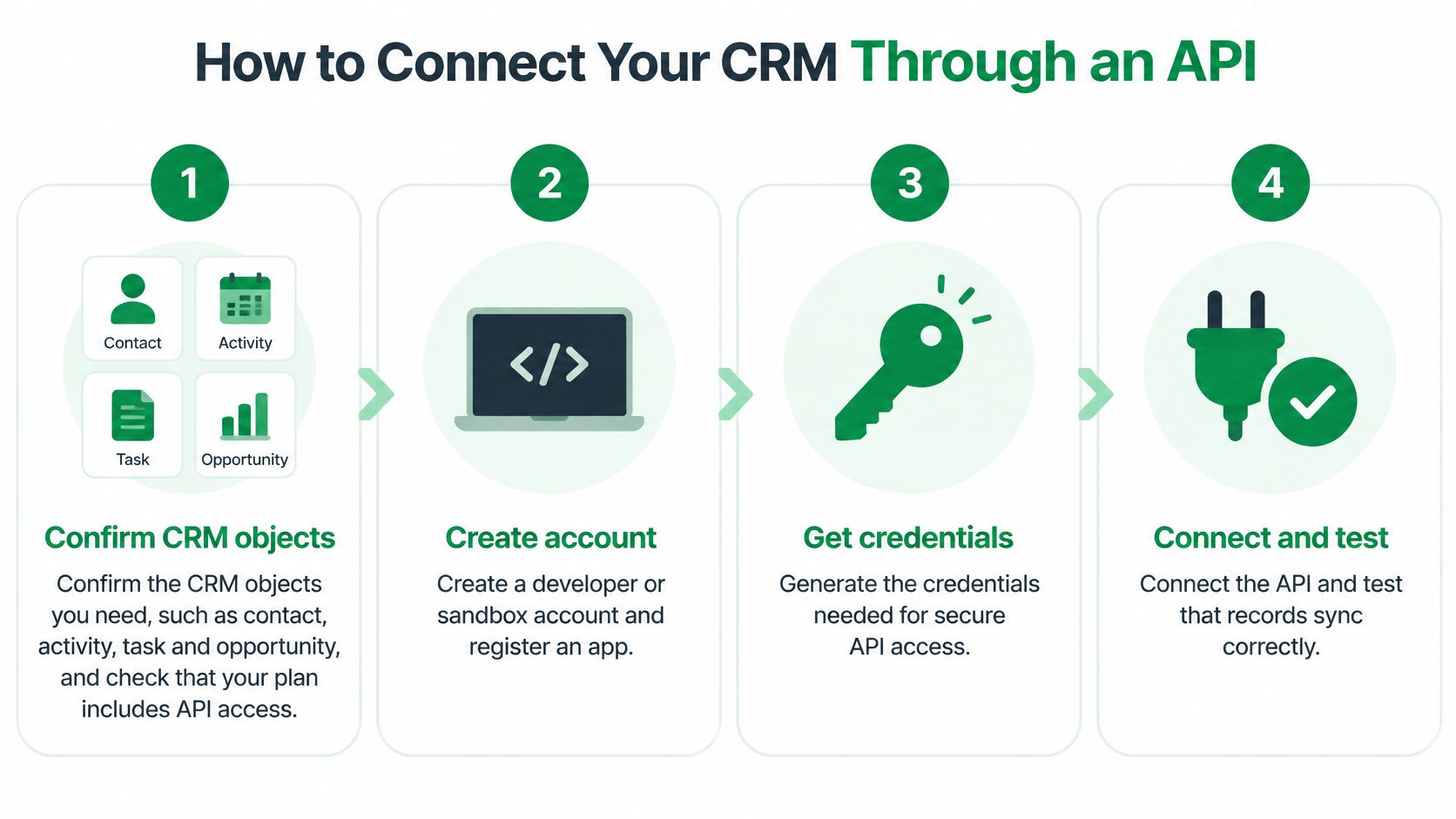
The illustration summarizes the main setup stages:
Set up the connection and its rules
The application-registration and credential steps below assume a custom build. With a marketplace connector or vendor-built integration, the provider may handle those mechanics, but your team still owns the business decisions.
Confirm objects and API access. List the contact, activity, task, and opportunity operations you need, then verify that your CRM subscription permits them. A common slip is checking that an API exists without checking whether your account can use the required endpoints.
Register an application in a test environment. Use the CRM's developer account or sandbox, an isolated environment for testing without changing live client records. Register the application and configure its approved authorization return address; avoid testing unfinished write operations against production.
Authorize and protect the credentials. Complete the documented OAuth flow and store tokens in a secrets manager rather than a shared document or spreadsheet. Implement expiry and renewal handling so a connection that works during setup doesn't stop later without warning.
Write the field map. Match each source value to the destination object and field, including required fields, allowed stage values, dates, and task owners. Create necessary custom fields before testing, since a correctly named source field won't automatically create its CRM equivalent.
Define the matching rule. Prefer an existing CRM record identifier once a relationship has been established, and document how an initial lookup becomes a confirmed match. Decide whether an unmatched call creates a proposed contact or enters a review queue; don't let the integration choose inconsistently.
Choose event delivery. A webhook pushes an event to your receiving application, while a scheduled process checks for available work on a timer. Webhooks can reduce waiting, but accepting an event without safely storing it can lose the work if your application stops.
Test the complete outcome
Use representative sandbox calls. Include an existing client, an unknown caller, a shared number, a missing required value, and a user with restricted permissions. Verify the visible CRM outcome, not just the API response, because an accepted entry may still lack the relationship that makes it appear in the client history.
Assign monitoring and recovery. Keep a delivery log, alert a named owner when requests fail, and schedule reconciliation between eligible calls and CRM entries. The common mistake is recording errors without giving anyone responsibility for resolving them.
- Access confirmed: The intended account can perform the required operations without excessive permissions.
- Mapping approved: Each destination field, relationship, owner, and approval condition is documented.
- Privacy rules agreed: The team knows what may be transferred and how lifecycle requests will be handled.
- Results checked: Approved pilot calls produce complete records without unexpected duplicates or blank fields.
- Reconciliation completed: Every eligible pilot call has a delivered entry or a clearly explained exception.
For workflows that create repeat follow-up work, CodeWords' explanation of Salesforce integration for recurring tasks is a useful implementation reference. Keep the distinction between a task triggered by a particular call and an ongoing recurring task explicit.
If call follow-ups also involve email, include that destination in the same ownership exercise. Our guide to CRM email integration addresses the related handoff.
Finish by documenting the disconnection process. Someone should know how to revoke access, stop queued deliveries, and determine which records were already transferred.
A connection is ready for live use when the team can explain both a successful delivery and a failed one.
Duplicates, Missed Syncs and How to Fix Them
In a 2024 U.S. dealership survey, 56% of respondents encountered information gaps or discrepancies between CRM, dealer-management, and financial systems more than one-quarter of the time, according to MediaPost's report. Respondents identified delayed synchronization, incomplete transfers, formatting differences, duplicates, and broken workflows among the problems.
A connection can be available and still produce unreliable records. Diagnose what happened to the individual call rather than stopping at a green connection indicator.
Start with duplicate prevention
Suppose the CRM creates a call activity, but the response never reaches your integration. The integration assumes the request failed and sends it again. Without a safeguard, the client history now contains duplicate entries.
Use a stable unique key for the intended operation, such as the source call identifier combined with the destination action. Where the CRM supports idempotency keys, repeated requests with that key should represent the same operation rather than additional work.
Otherwise, store the destination activity identifier and check the source-call reference before creating another entry. Design this carefully for simultaneous retries so separate workers can't both decide that the record is missing.
Sync symptoms, causes and fixes
| Symptom | Likely cause | Fix |
|---|---|---|
| Same call appears twice | A retry repeated a request that had already succeeded | Send a unique request key or check for an existing activity ID first |
| Summary attached to the wrong client | Phone numbers stored in different formats or an ambiguous match | Normalize numbers before matching and review unmatched calls |
| Updates arrive hours late | Rate limits or a stalled retry queue | Use a retry queue with spacing between attempts and a delivery report |
| Fields are blank | Field not mapped or user lacks write permission | Compare the mapping with the CRM field list and check the user role |
| Deleted client still has a transcript | Deletion event never reached the CRM | Send deletion events and confirm them in the reconciliation report |
Separate matching errors from delivery failures
Normalize phone numbers into a consistent international format using a phone-number parsing library and known country context. Removing spaces alone isn't enough, and adding a country code by guesswork can create a false match.
Even a normalized number isn't proof of identity. Shared business lines, household numbers, and reassigned numbers need an ambiguity rule and a human review queue.
For temporary delivery failures, keep pending work in a durable retry queue. Space attempts apart, respect the CRM's instructions, and send persistent failures to a separate queue for investigation instead of retrying indefinitely.
Event order also matters. An older call delivered late shouldn't overwrite a newer, approved opportunity decision. Compare event timestamps and apply explicit rules for changes that affect business status.
A delayed, verified entry is safer than an immediate note attached to the wrong client.
Judge the integration by accuracy, completeness, traceability, and recovery. A delivery report should let someone connect a source call to its CRM entries, see unresolved exceptions, and repair them without creating more uncertainty.
Start Your First CRM Integration Safely
Use a ready-made connector when your CRM and call tool support the required workflow and controls. Choose a custom build when the connector can't express your mapping, approval, or privacy requirements, rather than forcing sensitive information through an unsuitable default.
A vendor-built integration is another option when you want the software provider to maintain the connection. Evaluate the implemented behavior, not just the label.
Integration paths compared
| Path | Best when | Control over mapping and privacy | Upkeep |
|---|---|---|---|
| Marketplace connector | Your CRM and call tool already support it | Limited to connector settings | Low |
| Custom build on REST API | You need specific mapping and privacy rules | Full control | Developer time for ongoing upkeep |
| Vendor-built integration | You want the provider to maintain the connection | Limited to vendor options | Low, provider maintains it |
Make the pilot a decision gate
Before approving live use, give the person responsible for the pilot a short acceptance checklist:
For VoxNote users, our Pro plan includes delivery of call summaries to your CRM, and our team builds that integration. Pro customers receive direct support from the founders. You can discuss sales, team, and partnership questions in a video call with founder Dannick Villeneuve.
Book the pilot with a named owner, complete the mapping document, and review the initial week's records before expanding access. Approve the connection only when the team can trust what appears in the client history.
VoxNote turns client calls into transcripts and summaries, with CRM summary delivery available on Pro through an integration our team builds. Visit VoxNote to discuss your CRM workflow and arrange a pilot around your record-matching, review, and privacy requirements.