
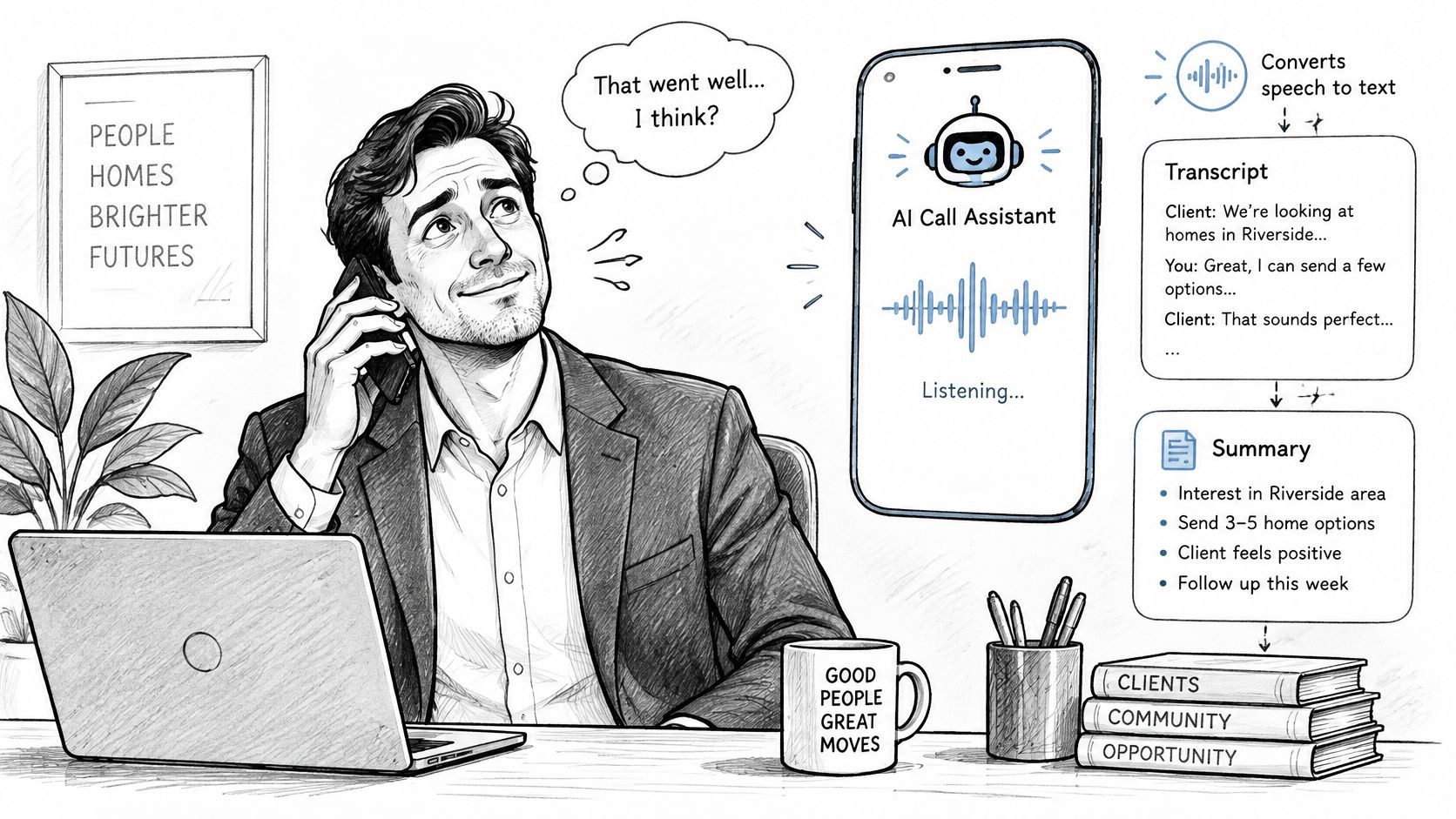
A broker ends a client call and reaches for a pen, but the next call is already coming in. The rate, requested documents, and promised follow-up are still fresh in mind, but they won't stay that way for long. An AI call assistant can turn the conversation into a transcript, a summary, and a starting point for the follow-up. It can't decide what the client agreed to, though. You still need to check the details before anything goes out.
Table of Contents
- What an AI Call Assistant Actually Does
- Capabilities and Limits at a Glance
- How to Connect Your Phone Number Step by Step
- How a Call Becomes Notes, Summaries and Follow-Ups
- Checking Accuracy Before a Summary Goes Out
- Consent and Privacy for Calls Across Borders
- Test One Week of Calls Before You Commit
What an AI Call Assistant Actually Does
A broker finishing a call may need to record what was discussed, identify the agreed next steps, and prepare a follow-up. An AI call assistant can produce three different outputs: a transcript of the captured conversation, a summary of key points and decisions, and a follow-up draft based on the actions discussed.
Each output has a different job. The transcript gives you text to check; the summary helps you find the main points; the draft gives you a starting point for a client email. Brokers, financial planners, sales representatives, and other professionals who handle client calls on mobile phones may find these records useful, but they still need to verify details before acting on them.
The transcript relies on automatic speech recognition, or ASR, to turn speech into text. Accuracy varies with background noise, accents, overlapping speakers, specialist vocabulary, and phone audio quality. Even a small error rate can change the meaning of a sentence: as a simple illustration, a 5% word error rate would mean about one word in twenty is transcribed incorrectly.
Use the output as a fast first draft. Before relying on a summary or sending a follow-up, check names, amounts, commitments, and any detail that could change what the client understands or expects.
Capabilities and Limits at a Glance
An AI call assistant handles several related tasks, but each output has a different purpose. Use this table to decide what to rely on and what to verify.
| Task | What you get | Limit to check |
|---|---|---|
| Call notes | Full transcript of each captured call | Names, numbers, and overlapping speech can be misheard |
| Call summary | Titled summary with key points, figures, and next steps | A detail can be left out or a negation dropped |
| Follow-up email | Draft built from the call's agreed actions | Must be read, corrected, and sent by you |
| Language handling | Automatic detection, including mid-sentence switches | Accents and specialist terms reduce accuracy |
| Past calls | Searchable transcripts and summaries in app and browser | Only as reliable as the stored transcript |
These are separate jobs, not interchangeable records. A transcript helps you check what was said. A summary helps you find the main points quickly. A follow-up draft gives you a place to start, but it can sound polished even when it attributes the wrong action to the client.
Language detection needs special care in multilingual conversations. In the NIST/IARPA OpenASR20 challenge, which evaluated conversational telephone speech in ten low-resource languages, the best systems under a severely constrained training-data condition produced word error rates from 40% to 65%, according to the NIST OpenASR20 challenge description. That means errors can affect far more than spelling. A missed negation, mistaken name, or changed quantity can make a fluent summary misrepresent the conversation. Review the full transcript for calls in languages or combinations where recognition is less dependable.
An assistant also has clear boundaries. It doesn't decide what to send, replace your judgment on financial or other professional advice, or capture a call that was excluded or stopped before transcription. Use the transcript as the record and the summary as an index. Treat any figure or commitment as unconfirmed until you've checked it.
How to Connect Your Phone Number Step by Step
Call forwarding routes incoming calls through the assistant so it can capture and process them. The menu names differ slightly between phones and carriers, but the setup is generally straightforward. This guide to call forwarding options can help if your carrier uses different wording.
On iPhone
- Open Settings.
- Search for Call forwarding and open the setting.
- Turn call forwarding on.
- Tap Forward To and paste the assistant's number.
- Go back to save the setting.
On Android
- Open the Phone app.
- Tap the three-dots menu and choose Settings or Call settings.
- Choose Call forwarding, then select Always forward.
- Paste the assistant's number.
- Tap Enable or Turn on.
The common mistake is entering the wrong number or configuring forwarding on the wrong line. Check both before relying on the setup.
For outgoing calls, place the call from the assistant's app so it's captured; your client still sees your own number. Some mobile plans charge extra for forwarded calls, so check your carrier plan before assuming the feature is free.
Once forwarding is set up, incoming calls are captured automatically. Clients don't need to install an app or follow a link, and you don't need to press a record button during the call. Make a test call after setup and confirm that the call appears in the assistant's records. A successful test is more useful than assuming the carrier saved the setting correctly.
How a Call Becomes Notes, Summaries and Follow-Ups
After forwarding is set up, the call moves through a series of steps. Each one turns conversation into a usable record, but only your review can catch a wrong detail before a client sees it.
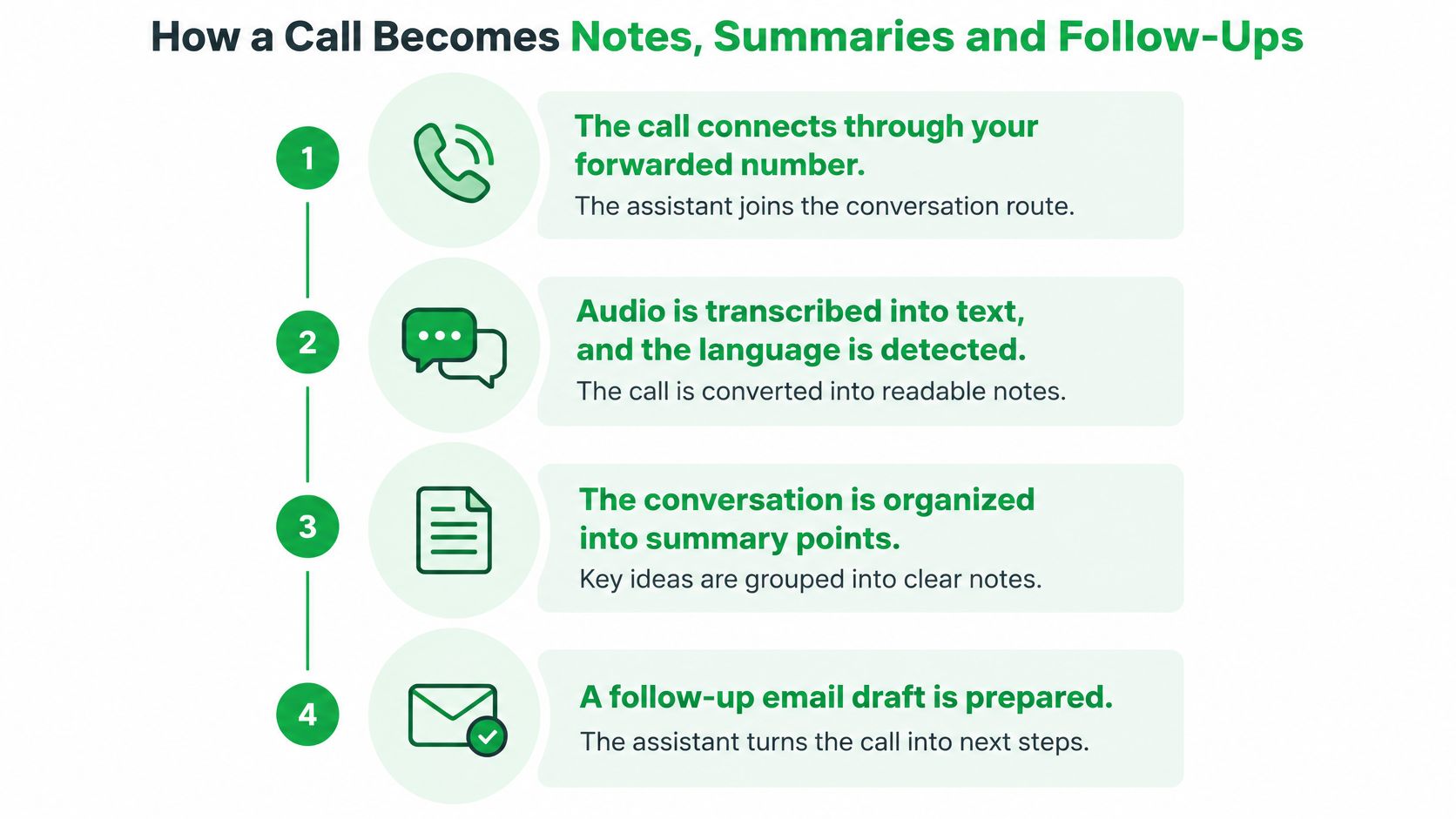
The call connects through your forwarded number. The assistant joins the route for a call that you've set up to be captured. This step matters because a call that doesn't pass through the configured route won't appear in the resulting notes.
Audio is transcribed into text, and the language is detected. Speech recognition creates a written version of the conversation. Automatic language detection helps organize multilingual calls, but the transcript can still mishear words or switch points, so don't assume every line is exact.
The transcript becomes a titled summary. The assistant organizes important points, figures, decisions, and next steps so you can scan the discussion without rereading every line. A summary is most useful when it points you to what needs confirmation, rather than being treated as a complete substitute for the transcript.
A follow-up email draft is prepared. The draft uses the actions and context from the call to build a message. For example, if a broker agrees to send three documents and confirm a rate-lock date by Friday, the draft can put those agreed actions into a written list. Check that the date and commitments match the conversation before sending.
The summary reaches your inbox and the app. A quick delivery makes it easier to take action while the call is still fresh. For a VoxNote user, a titled summary appears in the Notes tab and is emailed after the call.
You review, correct, and send the draft. This is the point where you compare the important details with the transcript or audio and fix mistakes. No earlier stage can replace this check.
The process doesn't cover an in-person meeting, and it won't capture a call you excluded in advance. For practical advice on turning phone conversations into text, see this guide to phone call transcription.
The habit changes from writing while listening to checking after the call. That frees you to focus on the conversation, while keeping the professional responsible for the record and the message. Here's a short video showing the call-processing workflow:
Checking Accuracy Before a Summary Goes Out
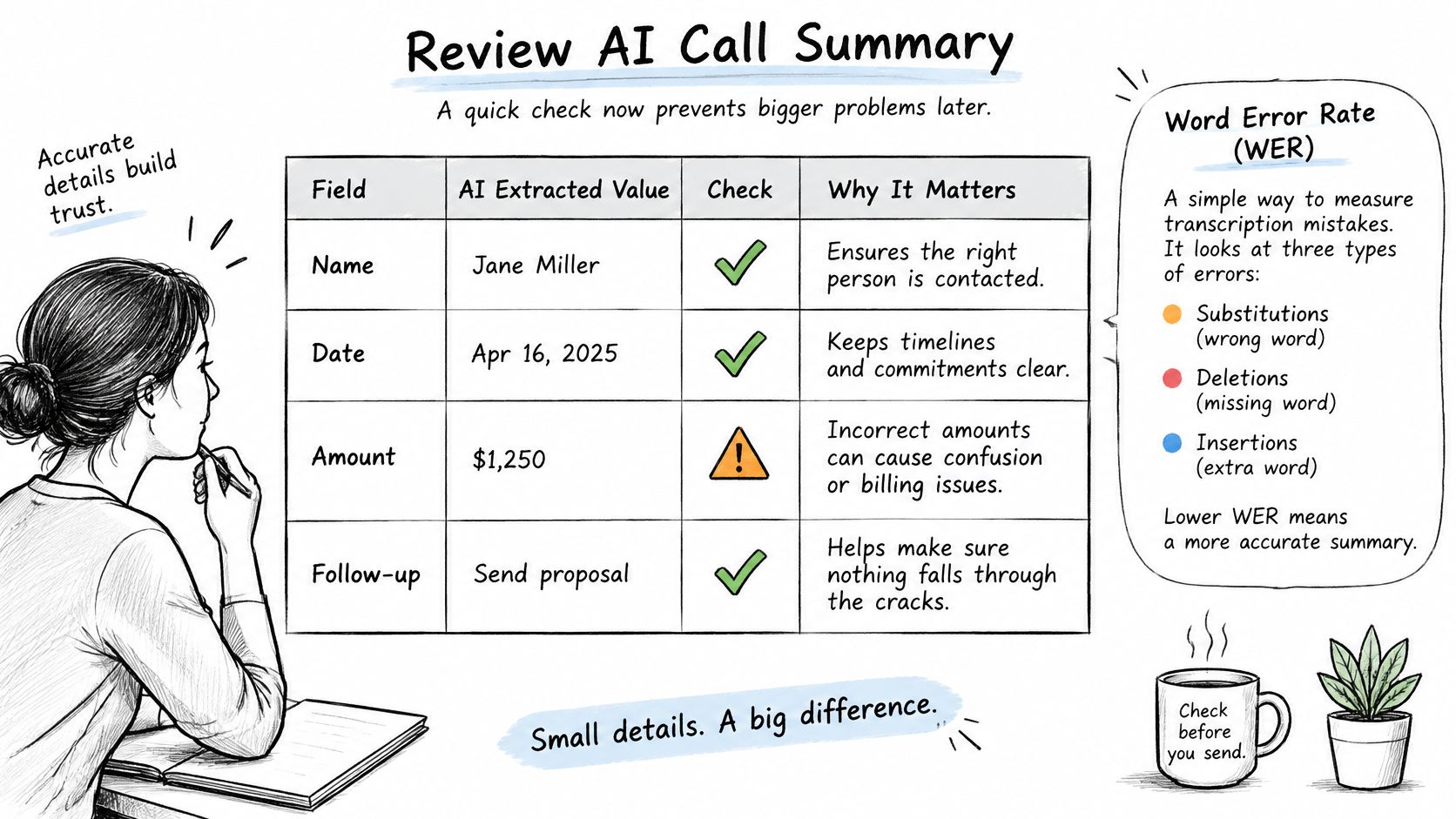
Some errors are minor; others change the client's instructions or what you've promised to do. Check these fields before sending a summary or follow-up.
| Field | Why it matters | How to check |
|---|---|---|
| Amounts and rates | A wrong figure changes a quote or a recommendation | Compare with the transcript span and the audio |
| Dates and appointments | A missed date causes a missed meeting | Confirm against your calendar before sending |
| Names and policy numbers | Proper nouns can be misheard | Check spelling against the client file |
| Client commitments | A summary may record what was only discussed | Read the surrounding transcript before confirming |
| Negations | A dropped “not” can reverse the meaning | Reread the full sentence in context |
Word error rate (WER) counts substitutions, deletions, and insertions against a human reference transcript. A 5% WER means roughly one word in twenty differs from the reference. But an average error rate doesn't tell you which words are wrong, and errors in a rate, date, or commitment carry more risk than a small grammatical mistake.
On NIST's 2000 conversational telephone-speech benchmark, human transcription error was 5.9% for Switchboard conversations and 11.3% for CallHome conversations. A Microsoft system achieved approximately 5.8% and 11.0%, respectively, according to the telephone-speech transcription evaluation. Similar aggregate error rates don't guarantee that a particular business-critical figure was captured correctly. Crosstalk, compression, accents, disfluencies, and uneven audio quality all complicate telephone transcription.
Use a repeatable review routine:
- Scan the summary for amounts, dates, names, and commitments.
- Open the matching transcript span.
- Confirm the detail against the audio or your own notes.
- Send the follow-up only after you've made any necessary corrections.
Keep a simple quality check going after the initial setup. Review a sample of calls each week and count how many summaries need a correction. If the same field keeps causing trouble, add a targeted check for it, such as comparing all quoted rates against the client file. Treat the summary as a searchable first draft, and keep the transcript as your reference record.
Consent and Privacy for Calls Across Borders
A client may expect an ordinary phone conversation, while an AI call assistant creates a transcript and summary for later use. Before recording, explain what will be captured, how the transcript and summary will be used, and how long the provider keeps them. A lawful recording can still conflict with client expectations, contractual duties, privacy obligations, or professional rules if the processing is not clearly disclosed.
Consent requirements depend on the caller's location, the purpose of the call, and your professional obligations. U.S. federal law generally permits one-party consent, while some states require consent from every participant. Canadian privacy guidance commonly emphasizes notifying callers, explaining the purpose, and obtaining consent, as outlined in Quo's guide to legally recording phone calls. Check the rules that apply to the specific call before capture begins.
Use a clear process:
- Identify the caller's likely location and the rules that apply.
- Disclose recording before capture begins.
- Explain how the transcript and summary will be used and how long the provider keeps them under its published policy.
- Offer a way to decline.
- Record that the client gave consent.
If a caller declines, don't proceed with AI capture. In VoxNote, you can exclude a contact ahead of time or stop transcription mid-call. Ordinary call audio is deleted from the temporary systems of the telephony and transcription providers after the transcript is created. Retries, outages, security incidents, or legal obligations can delay deletion. Other VoxNote users who took part in the same call may access that shared call record, so review who has account access.
Before choosing a tool, check where its data is stored and whether it leaves your country. Contractors handling client information should also review their own safeguards before choosing a tool, including information protection for contractors. For practical guidance on recording calls, see phone call recording. Regulator rules and client contracts still apply even where recording is lawful.
Test One Week of Calls Before You Commit
An AI call assistant fits professionals who take regular calls, follow up in writing, and can review every draft before sending. It's a poor fit if you handle sensitive conversations without a clear consent process. Run a short test before making it part of your routine.
- Set up forwarding and make five test calls.
- For each summary, compare amounts, dates, and names with the audio.
- Count how many summaries needed a correction and write down the result.
- Send only follow-ups you've read in full.
- After seven days, decide whether the correction load is low enough for the tool to earn a place in your workflow.
Check with your carrier before the test to see whether call forwarding costs extra. A mobile plan may charge for it, so don't assume the service is included. If your work includes automated call handling beyond personal note-taking, a separate checklist for testing Lighthouse Legal voice agents can help you think through what to test before deployment.
VoxNote works with an existing iPhone number and emails a summary after each call. Your trial will show whether its transcripts and drafts fit your calls and review habits. Before you begin, write down a consent script, a verification checklist, and a retention rule.
VoxNote captures calls made through your existing phone number and turns them into transcripts, summaries, and follow-up drafts for you to review. Start with a small set of calls, check the details before sending, and visit VoxNote to see whether it fits your client follow-up workflow.