
You're halfway through an email, your hands are busy, or you've just finished a call and need to capture what was agreed. Speech-to-text can turn spoken words into a draft, a searchable note, or a call record, but the best method depends on what you're transcribing and how sensitive the audio is.
For quick notes, start with the dictation feature already on your device. For a saved recording or phone call, use a workflow built for audio rather than relying on a nearby microphone to catch every word. Either way, treat the result as a draft until you've checked the details that matter.
Table of Contents
Start Built-In Dictation on Your Device
Dictation works best for a short message, note, or draft you can check as you go. Choose the tool that matches the text field you're using, then wait for its microphone indicator before speaking.
| Device or app | Built-in tool | How to start |
|---|---|---|
| iPhone or iPad | Apple Dictation | Tap the microphone key on the keyboard |
| Android phone | Gboard voice typing | Tap the microphone icon on the keyboard |
| Windows 10 or 11 PC | Windows Voice Typing | Press Windows key + H |
| Mac | Apple Dictation | Press the Fn key twice, or use the shortcut set in Keyboard settings |
| Google Docs | Voice typing | Tools > Voice typing, or Ctrl + Shift + S |
| Microsoft Word | Dictate | Home tab > Dictate |
Turn on dictation and speak
On iPhone or iPad, open Settings > General > Keyboard and turn on Enable Dictation if the microphone key is missing. Open Notes or another text field, tap the microphone key, and speak in short sentences. Tap Done to stop.
On Android, tap a text field in Messages, Notes, or another app, then tap the microphone icon on the Gboard keyboard. Say punctuation commands such as “comma,” “period,” or “new line” when you want them inserted. If voice typing is unavailable, check that Gboard is installed and selected as your keyboard. For another walkthrough, see speech-to-text options on Android.
On Windows, click inside a document or browser text box and press Windows key + H. Start speaking when the voice-typing control is ready; press Esc to stop. On a Mac, open System Settings > Keyboard, turn on Dictation, click a text field, and press Fn twice. Press Fn again when you're done.
In Google Docs, select Tools > Voice typing or press Ctrl + Shift + S. Use the microphone beside the document to start and stop. For setup details, read Tutorial AI's Google Docs dictation guide. In Word, select Home > Dictate and speak into the document.
Fix the first-word problem
Wait for the microphone icon or voice-typing indicator before you begin. If it does not appear, check the app's microphone permission in your device settings.
Dictate a sentence, pause, and check it before continuing. Short bursts make misheard names and punctuation easier to correct than a long paragraph.
For names, accents, or mixed-language phrases, check the transcript as you go. Dictation can substitute a familiar word for an unfamiliar one, so correct important details before using the text.
Decide Whether Audio Should Leave Your Device
A transcript may feel like ordinary text, but the audio behind it can contain client details, health information, financial figures, or confidential plans. Decide where that audio will be processed before you record or upload it, not after you've created a file you can't easily retrieve or delete.
| Factor | On-device | Cloud |
|---|---|---|
| Internet needed | Usually no | Yes |
| Audio leaves the device | Usually no | Yes |
| Accuracy on difficult audio | Often lower | Often higher |
| Long recordings | Limited by battery and storage | Handles long files |
| Who controls storage | You | The provider, under its policy |
| Consent before recording | Still required | Still required |
On-device transcription can keep audio local and work without a connection. The trade-off is that it uses device storage and battery, and difficult audio may produce weaker results. Cloud transcription sends audio to a provider and needs a connection, but can be a better fit for longer files or recordings that need stronger processing.
Research on edge speech recognition describes the connectivity and infrastructure needs of cloud models, along with the privacy concerns they can raise. It also notes that smaller on-device models are becoming more capable, though local processing can require more storage, battery, or suitable hardware and may still struggle with difficult audio. The practical choice is to match the method to the sensitivity of the recording and the quality you need, rather than assume that every transcript should be stored in the same place. Research on edge speech recognition and offline transcription discusses these trade-offs.
Before recording another person, tell them what you're doing and why, then ask whether they want to continue. Consent requirements depend on where you are and the situation, so don't treat a transcription feature as permission to record. We delete ordinary call audio from temporary telephony and transcription systems after the transcript is created, normally shortly after processing. Retries, outages, security incidents, or legal obligations can delay deletion, and our employees don't routinely listen to recordings or read call content as part of transcription.
For sensitive notes or unreliable internet, I'd start with on-device processing. Choose a cloud service when long recordings, easier collaboration, or the demands of the audio justify sending it to a provider, and understand its access and retention practices first.
Transcribe Recordings and Live Phone Calls
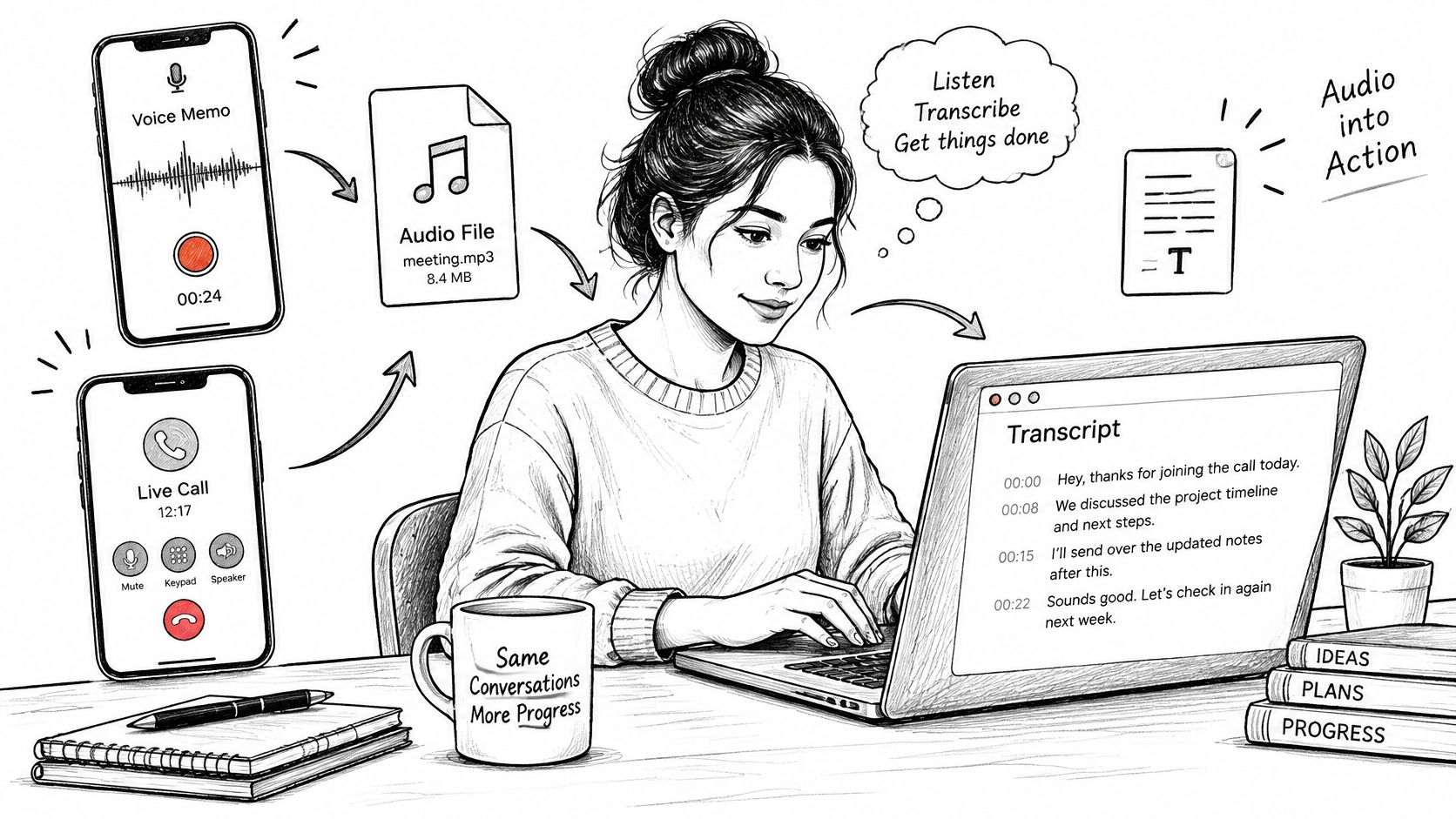
A saved voice memo and a live call need different workflows. For a recording you already have, share or export the audio file from its recording app, then upload it to a transcription tool that accepts audio files. Start a long file before you need the text; transcription may take time, and the finished result still needs a check.
Set up transcription for a live call
Most phones aren't designed to capture both sides of a call as a clean transcript. Speakerphone dictation can work for a short, informal conversation, but it's unreliable when the other person's voice is quiet, the room is noisy, or you need to keep the phone close enough to speak clearly. For client calls, use a call-transcription service that connects to your existing number instead of asking a second device to listen.
On iPhone, VoxNote connects through call forwarding. Open Settings and search for Call forwarding, turn it on, tap Forward To, enter the number provided by the service, then go back to save the setting. Make a test call and confirm the setup works before relying on it for an important conversation. Once forwarding is connected, VoxNote transcribes incoming and outgoing calls on the existing number without anything to press during the call. For additional setup details, see this guide to recording a call on an iPhone.
Consent belongs in the call workflow. At the start, say that the call is being recorded and transcribed, explain the purpose, and ask whether the other person wants to continue. VoxNote recommends this verbal disclosure before proceeding.
Review accents and language switches
A transcript can look complete while still getting a key phrase wrong. Speech-recognition systems often perform worse with accents, regional dialects, speech impairments, and conversations that switch languages. Mixed-language speech, overlapping speakers, and speech variability also create evaluation challenges in settings such as bilingual telehealth, as discussed in this research on multilingual and variable speech.
Pay particular attention to speaker labels, names, amounts, dates, and commitments. If two people talk over each other, check who said what instead of assuming that a plausible-looking transcript assigned the words correctly. A transcript may identify the language and label speakers, but those features don't replace a human review of the details you'll act on.
Here's a short demonstration of an audio-to-text workflow:
Fixing Errors and Getting Accurate Transcripts
A transcript can sound convincing and still miss a key word. Use the type of error to choose the fix, then check details that could change a decision or follow-up.
| Symptom | Likely cause | Fix |
|---|---|---|
| Words cut off or missing | Speaking before dictation is ready, speaking too quickly, or holding the microphone too far away | Wait for dictation to start, hold the device about 15–20 cm away, and speak in short phrases |
| Text in the wrong language | Language setting doesn't match the speaker | Set the language before you start speaking |
| Names and numbers wrong | Uncommon names, figures, or technical terms | Check and correct names, numbers, and dates by hand |
| No punctuation | Dictation without punctuation commands | Say “period,” “comma,” or “new line” as you speak |
| Garbled text | Background noise from a room, road, or fan | Use a headset microphone and move to a quieter space |
| Speakers merged together | People talking at once or unclear speaker changes | Let one person speak at a time, then verify speaker labels manually |
Understand accuracy claims
Word Error Rate (WER) counts substitutions, insertions, and deletions needed to turn a generated transcript into a reference transcript, divided by the number of words in the reference. Lower WER is better, but it cannot predict how well a system will handle a particular recording. Audio quality, accents, noise, speaking style, language, and the difference between prepared speech and spontaneous conversation all affect the result.
Benchmark results also depend on the test conditions. On the LibriSpeech test-clean split, Conformer-T is listed at 1.9% WER, compared with 3.9% on test-other. Whisper large-v2 is listed at 2.7% WER on test-clean and 5.0% on test-other. These figures apply to those benchmark sets, not necessarily to a noisy call or a speaker with an unfamiliar accent. The LibriSpeech benchmark figures and WER explanation show how results vary between test sets.
Review the words that carry risk
Treat automation as a first draft when a transcript will guide follow-up or become part of a record. Replay the audio around uncertain names, street addresses, amounts, dates, and promises. For professional calls, use a consistent process to log key details from phone conversations, then check those details against the recording.
A smooth sentence can still contain a wrong figure or speaker assignment. Correct unclear details before you send or file the transcript.
Pick Your Method and Test It Today
Choose the workflow by the job. For a quick note or email, use dictation on the device you're already holding. For a saved voice memo, upload the audio to a tool that accepts recordings. For ongoing client calls on an iPhone, call forwarding can connect transcription to the number you already use, without a separate recording device. VoxNote runs on the iPhone and works with AirPods and in the car.
Then test the actual setup you plan to rely on. Record yourself speaking naturally in your usual environment, using the names, terms, and figures you handle at work. Read the transcript while listening to the audio, and mark any wrong names, numbers, dates, or speaker assignments.
If the result isn't reliable enough, change one thing at a time. Move the microphone closer, choose the correct language, or try a quieter location, then repeat the test. That gives you a practical answer to “How do I do speech to text?” for your own device and recording conditions, rather than a guess based on a headline accuracy claim.
VoxNote helps professionals transcribe phone calls on an existing iPhone number and organize the conversation into summaries and follow-up details. If you want a call-focused workflow to compare with built-in dictation, visit VoxNote.