
An iPhone records calls natively only in eligible regions and languages, for one-to-one calls; otherwise, use a call-forwarding service, a compatible recorder app, or speakerphone with a separate recording device. Get consent before recording, and choose the method that gives you the audio or transcript you need.
Why search for a recording button before checking whether Apple offers it where you are?
That's the missing step in many searches for “como grabar una llamada en el iPhone.” A missing control doesn't necessarily mean your phone is broken. Your region, the call type, and the participants' consent should determine your setup before you make an important call.
Table of Contents
Ways to Record an iPhone Call Compared
Apple's built-in recorder is the simplest starting point when it's available. It avoids forwarding configuration and saves the conversation inside Apple's own apps. But it isn't a universal solution, and recording support doesn't automatically mean transcription support.
Choose by call coverage first. Then consider disclosure, transcription, and how much setup you're willing to maintain.
iPhone call recording methods compared
| Method | Covers | Transcript | Other party notified | Main limit |
|---|---|---|---|---|
| Apple built-in Call Recording | One-to-one phone calls | Only in selected languages | Yes, automated notice to both | Button absent in unsupported regions |
| Call-forwarding transcription service | Incoming and outgoing calls on your own number through its supported call flow | Yes, plus summaries with a transcription service | Don't assume an automatic notice; disclose yourself | Requires call forwarding setup |
| Speakerphone plus second device | Any call you can play audibly through the speaker | No, unless you transcribe the file | No automatic notice | Background noise and signal quality |
| Third-party recorder apps | Calls routed through the app's supported forwarding or conference method | Included only if the app offers transcription | Check the app's announcement behavior; disclose yourself | iOS limits direct capture of cellular audio |
A recorder app isn't necessarily a different recording method. Many apps route the conversation through another number or add a conference recording line. Installing an app alone doesn't give it unrestricted access to cellular call audio.
If you also use another handset, Rednea's guide to Android phone call recording options helps separate Android workflows from iPhone instructions. Don't assume the same controls exist on both.
Before choosing a row, answer these questions:
- Where is the iPhone configured for use? Check region and language, not just the language you speak.
- Who's on the call? Identify every participant and their location before deciding how to obtain consent.
- What must you keep? An audio file may be enough for occasional reference; client follow-up often needs searchable text.
Consent and Legal Rules Before You Hit Record
Owning the phone doesn't settle whether you can record the conversation. The relevant rules can involve where each participant is, the purpose of recording, and how you store or share the result.
Don't treat a country name as complete legal clearance. Criminal recording rules, privacy obligations, workplace policies, and professional confidentiality requirements can address different parts of the same call.
Check the applicable rules
The following is a pre-call checklist, not a determination that a particular recording is lawful. For cross-border or sensitive professional calls, get advice that covers the participants' actual locations.
Consent rules by jurisdiction
| Jurisdiction | General consent standard | What to do |
|---|---|---|
| Canada (federal Criminal Code) | Confirm the applicable consent exception and separate privacy obligations | Disclose recording and check provincial privacy rules |
| United States (federal) | Confirm federal requirements alongside applicable state law | Don't treat federal permission as clearance under state law |
| US states requiring all-party consent, including rules relevant to California, Florida, Illinois, Pennsylvania, and Washington | Check the applicable rule for the conversation and circumstances | Obtain explicit agreement from everyone before recording |
| European Union and UK | Assess recording, transcription, and retention under applicable privacy rules | Establish the appropriate basis, explain the purpose, and set retention |
| Other markets | Local restrictions may limit recording or processing | Obtain local advice before enabling recording |
Typist's explanation of one-party versus all-party consent is useful for understanding the terminology. It isn't a substitute for checking the law that applies to your call.
Use this visual checklist to organize the questions you need to resolve.
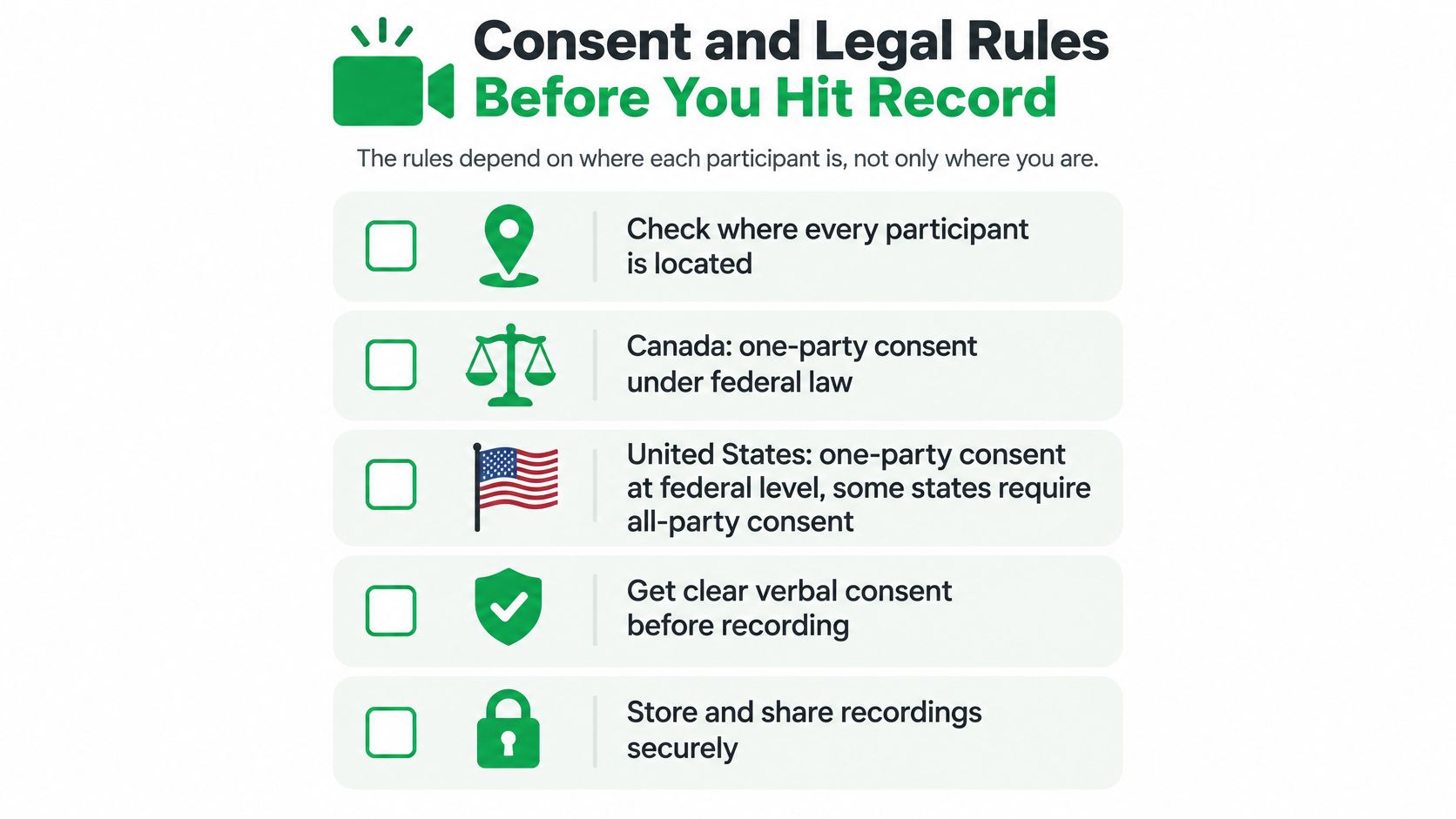
Ask clearly before recording begins
Apple's automated announcement is a disclosure. Don't assume it replaces explicit consent or satisfies every privacy obligation.
Practical rule: Explain the recording and transcription, say why you need them, and ask whether the person wishes to proceed.
For example, tell the participant that you'd like to record and transcribe the conversation to document their instructions and prepare follow-up. Explain who will process it, then ask for agreement before enabling capture.
We recommend verbal disclosure at the start of each call. Our customers remain responsible for informing every participant and obtaining legally required consent. Before contacting someone who doesn't use our app, obtain their consent and make clear that the app and third parties will record and process the conversation.
Our phone call monitoring guide provides additional context for professional workflows. This is general information, not legal advice.
Record With Apple's Built-In Feature
Start with an ordinary one-to-one Phone app call. Don't assume these instructions establish support for a conference line or FaceTime call.
Apple's iPhone User Guide limits availability by region and language, describes the automated announcement, and explains how recordings and supported transcripts are saved in Notes. Use the controls shown on your own device rather than relying on a screenshot from a different software release.
The process graphic offers a visual overview. For the controls and consent sequence, follow the written procedure below.
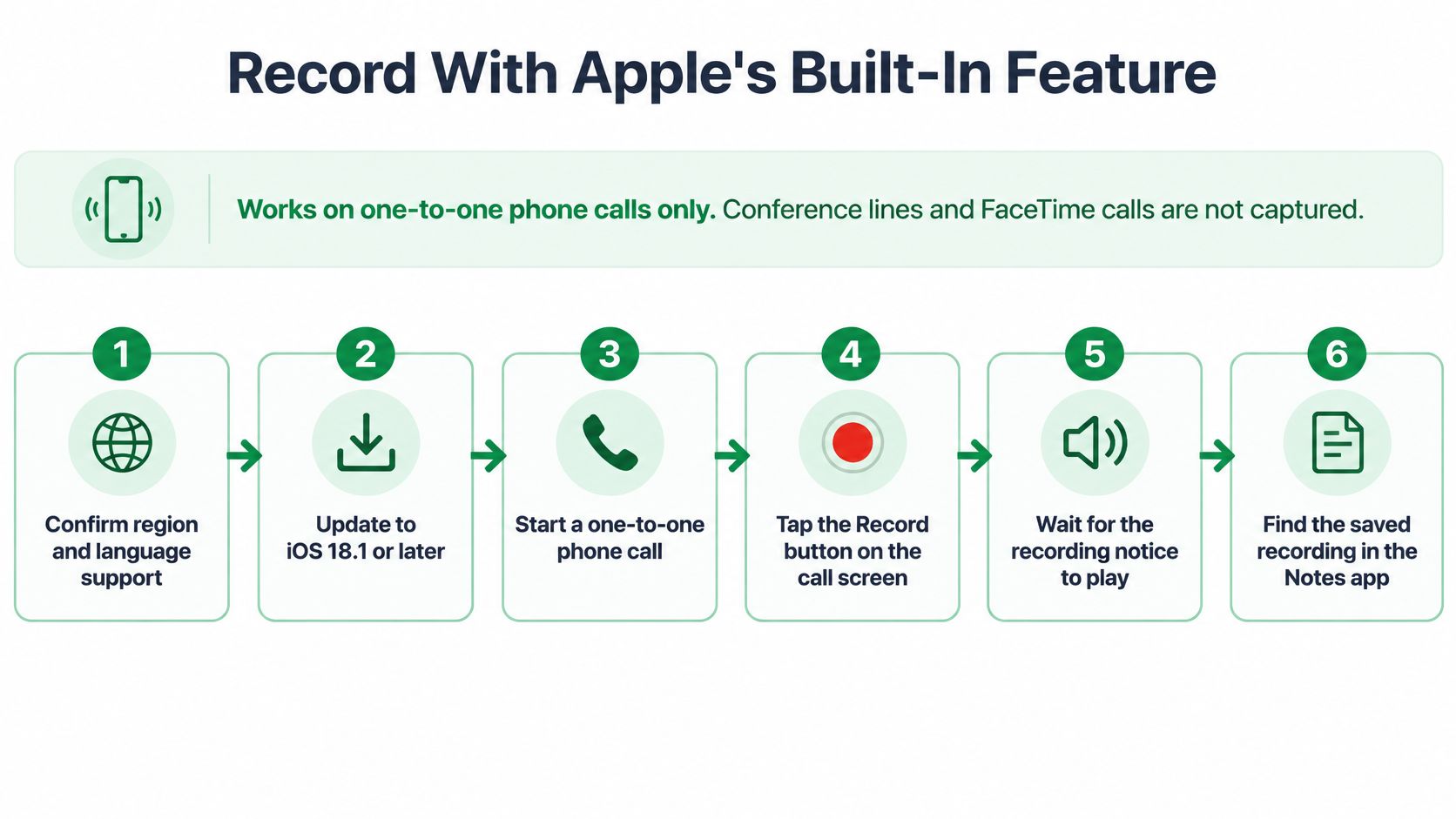
Follow the recording sequence
Confirm availability. Check that your iPhone's region and language support Call Recording and that you're making an ordinary phone call. An unsupported configuration can leave the control absent.
Obtain explicit consent. Explain the purpose and any transcription or processing before capture begins. Don't start recording while you're still asking permission.
Open Phone and connect the call. Place or answer the call normally. Confirm that you're speaking with the intended participant before proceeding.
Open More and choose Call Recording. Look for the recording control in the active call interface. If it isn't available, troubleshoot eligibility rather than repeatedly tapping unrelated controls.
Listen for the automated notice. Both participants should hear that recording has started. If you can't hear it during a test, don't rely on that setup until you've repeated the test successfully.
Stop from the recording control. End capture when you've finished the part you agreed to record. Don't continue capturing unrelated conversation just because the phone call remains connected.
Open the saved recording in Notes. Look in the Call Recordings folder, then open the note and select Transcript where supported. Keep the audio available so you can verify any text you use.
Keep capture separate from verification
Seeing words appear on screen doesn't establish that the transcript is correct. Names, specialist terms, and overlapping speech need particular attention before they become part of a client record.
The demonstration below provides another view of the recording workflow.
Don't experiment during a time-sensitive client conversation. Complete the verification routine under “How to Check a Recording Before You Rely on It” before depending on the setup for professional work.
Why the Call Recording Option Is Missing
Check regional eligibility before assuming a software fault. Apple's availability guidance says recording is unavailable in the European Union and several other markets, with transcription offered only in selected languages.
That distinction matters in bilingual households and when traveling. A phone's interface language, the conversation's language, and feature availability aren't interchangeable.
Missing button and transcript problems, causes and fixes
| Symptom | Likely cause | Fix |
|---|---|---|
| No Call Recording option in More | Region isn't eligible or market isn't supported | Check region and language in Settings, then select an alternative |
| Option missing during a FaceTime call | You're using a different call type from the ordinary phone-call workflow | Confirm coverage; use speakerphone or a service explicitly supporting that call type |
| Recording saved but no Transcript option | Language isn't supported for transcription | Preserve the audio and use a suitable transcription tool or take notes |
| No notice heard at the start | Recording may not have started, or the announcement wasn't audible | Repeat a short test call before relying on the setup |
| Transcript contains wrong names or numbers | Overlapping speech, accents, or weak cellular audio | Compare important details with the recording |
Check Settings in a useful order
Open Settings → General → Language & Region to inspect your configuration. Then check Software Update and install an available current release when appropriate. Finally, confirm that you're testing inside the Phone app on an eligible call.
A software update can fix an outdated system. It can't promise access to a feature Apple doesn't offer in your market.
Don't change region settings merely to make a button appear and assume that settles availability or legality. If the feature remains unavailable, choose a recording method whose call coverage you can test directly.
Recording Calls With a Call-Forwarding Service
Speakerphone is the most straightforward fallback for an occasional call. Put a separate phone, laptop, or digital recorder near the iPhone's speaker, choose a quiet room, and record a test passage before the conversation.
Use the second device's recording application, not an assumption that another app on the calling iPhone can capture both sides. Keep the speaker loud enough for clear speech without distortion, and don't move either device around during the call.
A stable desk setup makes this approach more practical than trying to capture audio while moving.
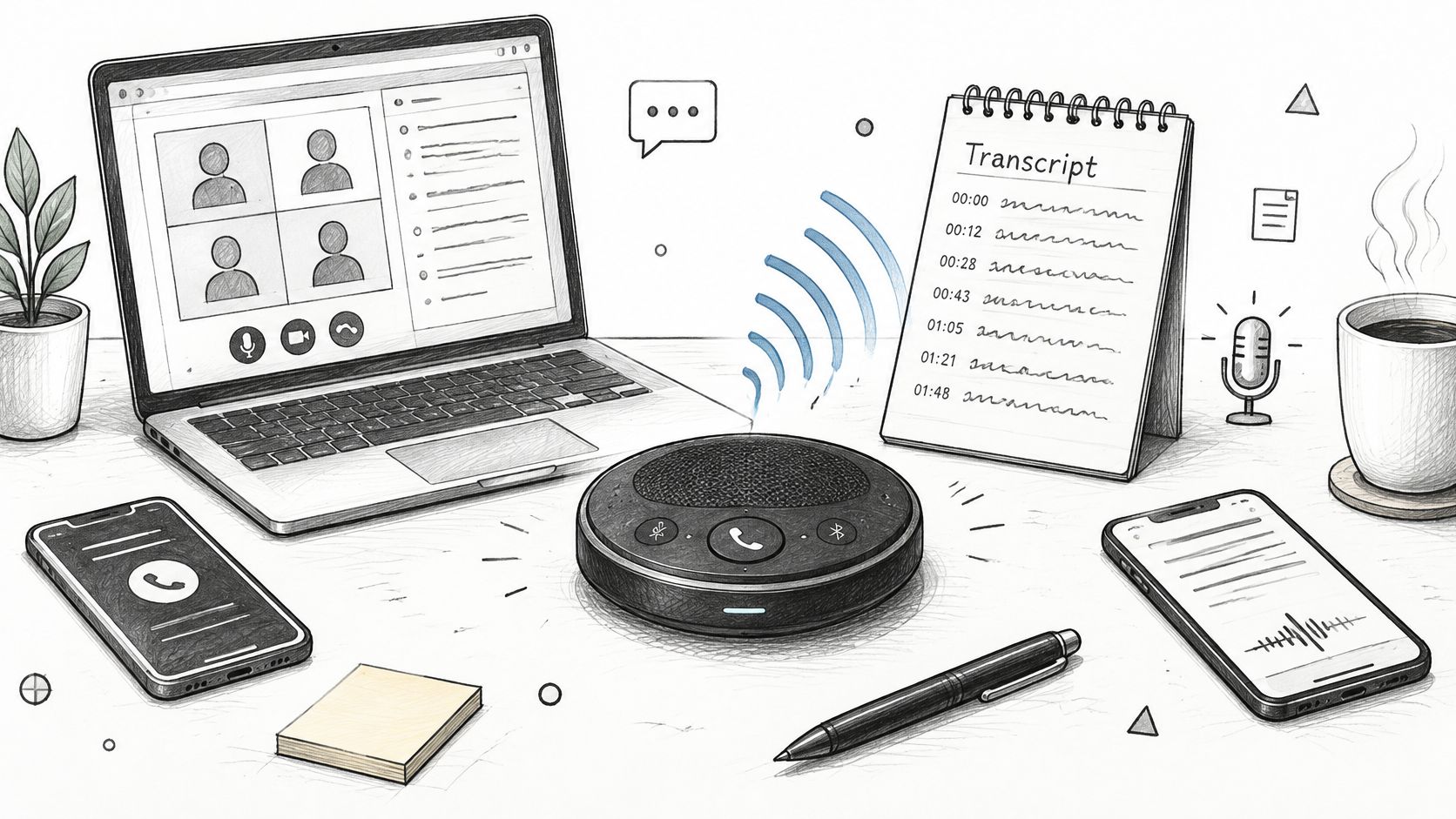
Forwarding changes the call route
A forwarding service captures supported calls through its own call infrastructure rather than recording sound from the room. That suits advisers, brokers, and sales representatives who need organized records without placing a separate recorder beside the phone.
With VoxNote, incoming and outgoing calls on your existing number can produce transcripts, summaries, and follow-up drafts. Outgoing calls start from our app while the recipient still sees your number; supported Bluetooth devices, including AirPods, work with the call flow.
Our call-forwarding setup instructions explain the configuration. The iPhone setup follows this sequence:
- Open Settings and search for Call forwarding.
- Activate forwarding and tap Forward To.
- Paste the VoxNote forwarding number.
- Go back to save, then test the incoming route.
Forwarding controls can be carrier-dependent. If the setting isn't available, resolve that with your carrier before assuming the recording service is connected.
Test routing and exclusions
For a single planned conversation at a desk, speakerphone may involve less configuration. For recurring mobile calls, forwarding avoids room-microphone limitations but introduces routing settings you must manage correctly.
- Test incoming calls. Call your established number from another phone and confirm that it rings and reaches the expected destination.
- Test outgoing identity. Confirm the recipient sees the number they recognize.
- Plan exceptions. We let users exclude a contact ahead of time or stop transcription mid-call.
- Remove forwarding deliberately. When disabling the workflow, turn off forwarding and test normal incoming calls again.
Automatic capture isn't automatic permission. Settle disclosure before the call enters a recording-enabled route.
How to Check a Recording Before You Rely on It
A saved transcript is a draft record until you check it. Apple doesn't guarantee universal transcription accuracy, and a readable sentence can still contain a wrong amount or an incorrect commitment.
Run a complete test
- Call someone who agrees to help. Use the same route you plan to use for real conversations, including the headset or speaker arrangement.
- Confirm the disclosure works. For Apple's recorder, listen for the automated announcement; for another method, verify your own disclosure procedure.
- Open the saved result. In Apple's workflow, check the note, play the audio, and confirm a transcript exists if you need one.
- Compare critical details with the audio. Check names, amounts, dates, requested documents, and who agreed to do what. Replay unclear passages rather than guessing from context.
- Copy only verified information into the client file. Review any generated follow-up message before sending it, especially statements that sound like promises.
- Set a retention decision. Keep only what you're entitled and required to retain, and schedule deletion rather than leaving files indefinitely.
Check access and retention
Our recordings are stored securely, then completely deleted and destroyed after 30 days. Save any permitted copy you need before that deadline, subject to your organization's retention requirements.
Other VoxNote users who participated in the same call may access its shared record. Don't treat a call entry as visible only to you without considering who participated.
Our daily phone call summary workflow can help organize the review habit. Add participant names and distinguish confirmed instructions from unresolved questions, especially where a later disagreement could turn on who said what.
Pick the Method That Fits Your Calls
Use Apple's recorder when your actual configuration supports it and you want a straightforward saved conversation. Don't add a forwarding setup solely because a recorder app appears higher in a search result.
Choose a transcription-focused call route when your work depends on finding instructions, preparing follow-up, and maintaining searchable records. Test your working language with realistic names and terminology, not just a simple greeting.
Match the setup to the setting
- Occasional desk call. A separate recorder beside speakerphone can be sufficient if you can control room noise and handle transcription afterward.
- Recurring client calls. Prioritize reliable incoming and outgoing routing, clear disclosure, and a repeatable review process.
- FaceTime or conference conversation. Verify that the selected method actually supports that call type. Cellular forwarding doesn't automatically capture unrelated calling apps.
- Sensitive discussion. Decide whether recording is appropriate at all. If permission or processing requirements remain unresolved, take lawful written notes instead.
Choose the workflow you can operate correctly during an ordinary working day, not the one with the longest feature list.
Don't make your first important conversation the acceptance test. Run a test call today and check the notice or disclosure, the saved recording, and the transcript.
VoxNote records supported incoming and outgoing calls on your existing number and turns them into transcripts, summaries, and follow-up drafts. Visit VoxNote to explore a call-forwarding workflow for client conversations, then test it with consent before relying on it for your records.