
A broker finishes a rate call in the car, sends a quick follow-up from Outlook at the office, then opens the CRM and finds no trace of either. The client exists three times, under three spellings, with no record of what was quoted. That gap, not the connector setting, is where most CRM Integration Outlook projects fail.
Table of Contents
Why CRM and Outlook Integration Matters Now
Start with the three versions problem. One contact comes from an Outlook email signature. One comes from a phone entry typed after a call. One was created by an assistant when a document arrived. Each record holds part of the story, none holds the rate, the term, or the deadline the client agreed to on Tuesday's call.
Connecting Outlook to the CRM doesn't fix that on its own. A sync copies messages and contacts. It doesn't decide which record is the client, which note reflects the actual decision, or who owns the next step. Teams that treat the link as the whole job end up with more data in the CRM and less confidence in it.
A standard system, not a side tool
CRM use is now the default operating pattern for client work. 65% of businesses used CRM software in 2024, up from 56% in 2022, according to CRM adoption figures covering business use in 2024. The same source puts adoption at 91% among companies with more than 10 sales representatives and 97% among enterprises generating more than $1 billion in revenue, as reported in that adoption data.
The market behind those systems keeps expanding too. Gartner reported worldwide CRM software revenue of approximately $128 billion in 2024, representing 13.4% year-over-year growth, in its 2024 worldwide CRM software revenue report. Customer data platforms inside that category grew 21.9% in 2024, per the same Gartner report.
More records in the CRM doesn't mean better records. Measure the connection by whether a colleague can open a file and act without calling you first.
That growth pattern tells a small advisory team something practical. Vendors will keep shipping APIs, sync tools, and automation. Your clients, partners, and carriers will keep expecting a complete file. The scarce skill isn't finding a connector. It's deciding what belongs in the record, a point worth weighing alongside broader CRM integration insights from F1Group when you review how other firms approach the connection.
For phone-heavy work, the stakes are concrete. A renewal date mentioned on a call, a spouse added to a policy discussion, a rate quoted with conditions. If those details stay in an inbox thread or a notebook, the CRM becomes a contact list with a pipeline view. The integration matters because it can move verified details into the file while they're fresh. It only helps if someone has defined what verified means.
Mapping Your Client Workflow Before You Connect
Don't open connector settings yet. Take one recent client file and walk it from first contact to signed documents. Write down every point where information was created, changed hands, or was needed by someone who didn't have it. That one-page map decides what your integration has to do.
The visual below shows the four stages most small teams can map in one sitting.
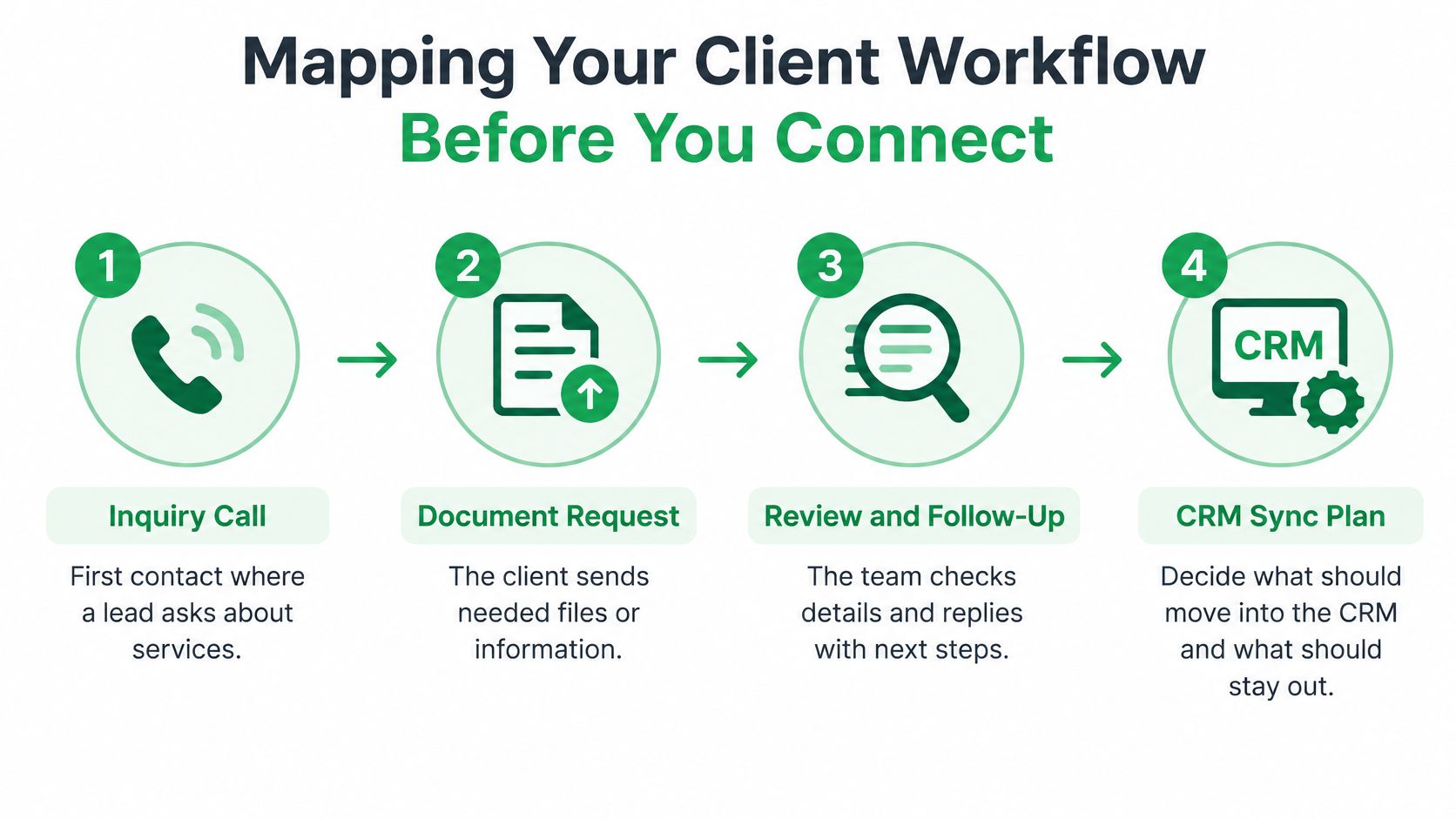
Walk the file in order
- Inquiry call: A lead calls about a renewal. You capture name, property, current lender, and timing. Note where you wrote it down today.
- Document request: You email a checklist from Outlook. The client replies with files and a new phone number in the signature.
- Review and follow-up: An assistant checks documents, spots a missing statement, and needs the call context to ask the right question.
- Status update: The client calls for an update. Whoever answers needs the last decision and the next promised date.
Mark each handoff between phone, email, and CRM. Where did someone retype information? Where did a detail live only in one person's inbox? Those marks become your integration requirements. Everything else is optional.
Pick one outcome for the pilot
Choose a single business outcome. A workable first outcome sounds like this: a finalized call summary and the agreed next step get written to an existing contact or opportunity, after a person reviews it. Not every transcript. Not every email. One workflow, done reliably.
Build fallback paths into that outcome from the start. If matching fails, where does the summary wait for review instead of creating a duplicate? Guidance on designing CRM workflows with fallback paths is useful reading here, because a workflow without an exception route pushes errors straight into client records.
There's a reason to keep the scope narrow. User adoption is the leading cause of CRM failure at 38%, with inadequate change management at 22% and poor data quality at 18%, according to implementation research on common CRM failure causes. Technical problems account for only 6–10% of failures in that same research. People and process break first.
So get agreement on the map before anyone connects anything. The broker, the assistant, and whoever handles compliance should all be able to point at the map and say where a rate discussion gets logged. If they point at different places, you don't have an integration problem yet. You have a workflow disagreement, and syncing it will only make it faster.
Deciding Which Call Details Belong in the CRM
A logged email proves a message was sent. It doesn't update an opportunity stage, a deal size, or a decision timeline. Someone has to interpret the conversation and decide what it changes. Integration guides often skip that step, but a recent analysis makes the point clearly: an email can be captured while still failing to populate those fields automatically, as an analysis of CRM email integration limits explains.
That gap matters most on the phone. Mortgage, insurance, and investment decisions are usually spoken first and confirmed in writing later. The question isn't whether the call was captured. It's which parts of it become which kind of CRM record, and who checks them.
Match the outcome to the record
Which CRM Record Fits Which Call Outcome
| Record type | Best used for | Who verifies it |
|---|---|---|
| Activity note | What was discussed, quoted, or disclosed | The professional who took the call |
| Follow-up task | A promise with an owner and a date | The person who made the promise |
| Contact update | New phone, email, spouse, or referral source | The professional, against a source document |
| Opportunity update | Stage, amount, product, or close timing change | The deal owner before it affects a forecast |
Use the table as a sorting rule. A broker logs a rate discussion, for example. The quoted rate and conditions belong in an activity note. The commitment to send a rate sheet by Friday becomes a task. The client's new mobile number updates the contact. A move from quote to application changes the opportunity, and only the broker should approve that change.
Apply a short evidence standard
Before anything writes to the CRM, run four checks. Is the detail stated clearly, or inferred? Who said it? Does it contradict what's already on file? What happens if it's wrong? A clear statement from the client can update a field. An inference from tone or context belongs in a note, flagged as unconfirmed, or nowhere at all.
Keeping a habit like reviewing a daily phone call summary before filing gives those checks a natural place to happen. Corrections need a rule too. When a client changes a decision, update the existing record and keep a short correction note with the date. Don't stack a second, conflicting note on top and leave the next reader to guess.
Practical rule: If nobody would act on it, forecast from it, or need it in an audit, it doesn't earn a structured CRM field.
More automation can reduce reliability when it multiplies unverified records. Judge the integration by the accuracy of what lands in the file, not by how many calls and emails got captured.
Keeping Contacts and Emails Clean in Your CRM
Duplicates rarely come from carelessness. They come from format differences. The same client calls from a mobile, emails from a work address, and gets entered once with spaces in the phone number and once without. Outlook matches one version, the CRM creates another, and a third appears when an assistant can't find either during a busy morning.
The cost of that mess is not theoretical. A 2025 CRM data survey found that 76% of organizations considered less than half of their CRM data accurate and complete, as cited in industry analysis of CRM data quality findings. The same survey reports 37% of organizations experienced revenue losses directly associated with poor data quality, per that cited analysis.
Set matching rules before syncing
- Normalize first: Store phone numbers in one format and email addresses in lowercase, without trailing spaces, before any matching runs.
- Match on stable identifiers: Use normalized email or an existing customer ID. Names alone match too loosely, especially with spouses and family members on one file.
- Block automatic creation: When no match is found, route the record to a review queue instead of creating a new contact.
- Use idempotent upserts: A retried write should update the same activity, not create a second copy of the same call note.
Keep provenance on every write
Every record written by an integration should carry its source application, a timestamp, its review status, and an immutable external event ID. Preserve the source system ID as well. That's what lets a corrected summary update the original CRM activity instead of producing a duplicate that contradicts it.
Provenance also makes cleanup possible later. When a client disputes a quoted figure, you can trace the note back to a specific call and a specific reviewer. Without it, you're comparing an Outlook thread against memory.
Run a short reconciliation on a schedule. Compare recent calls and emails against CRM records, check counts on both sides, and review validation rejects, permission errors, and retry volume. Small mismatches caught weekly stay small. The same discipline applies to inbox habits themselves, which is why norms around email culture inside a team affect record quality more than most connector settings do.
None of this needs a developer. It needs a written matching rule, one person who owns duplicates, and a recurring fifteen minutes to compare what the phone and inbox produced against what's sitting in the CRM.
Protecting Sensitive Client Information Before Syncing
The default most setup guides promote is capture everything. For advisory and brokerage work, that's the wrong default. A complete customer history sounds helpful until a client's personal email, a legal matter, or health details from an insurance discussion sit in a CRM that half the office can search.
Syncing email and call content means processing names, addresses, message content, and other personal data. That creates obligations around lawful processing, vendor contracts, access controls, retention, and deletion. Those obligations apply across jurisdictions including the EU, California, Canada, and regulated financial markets, a scope described in connector guidance on Dynamics 365 and Outlook data handling.
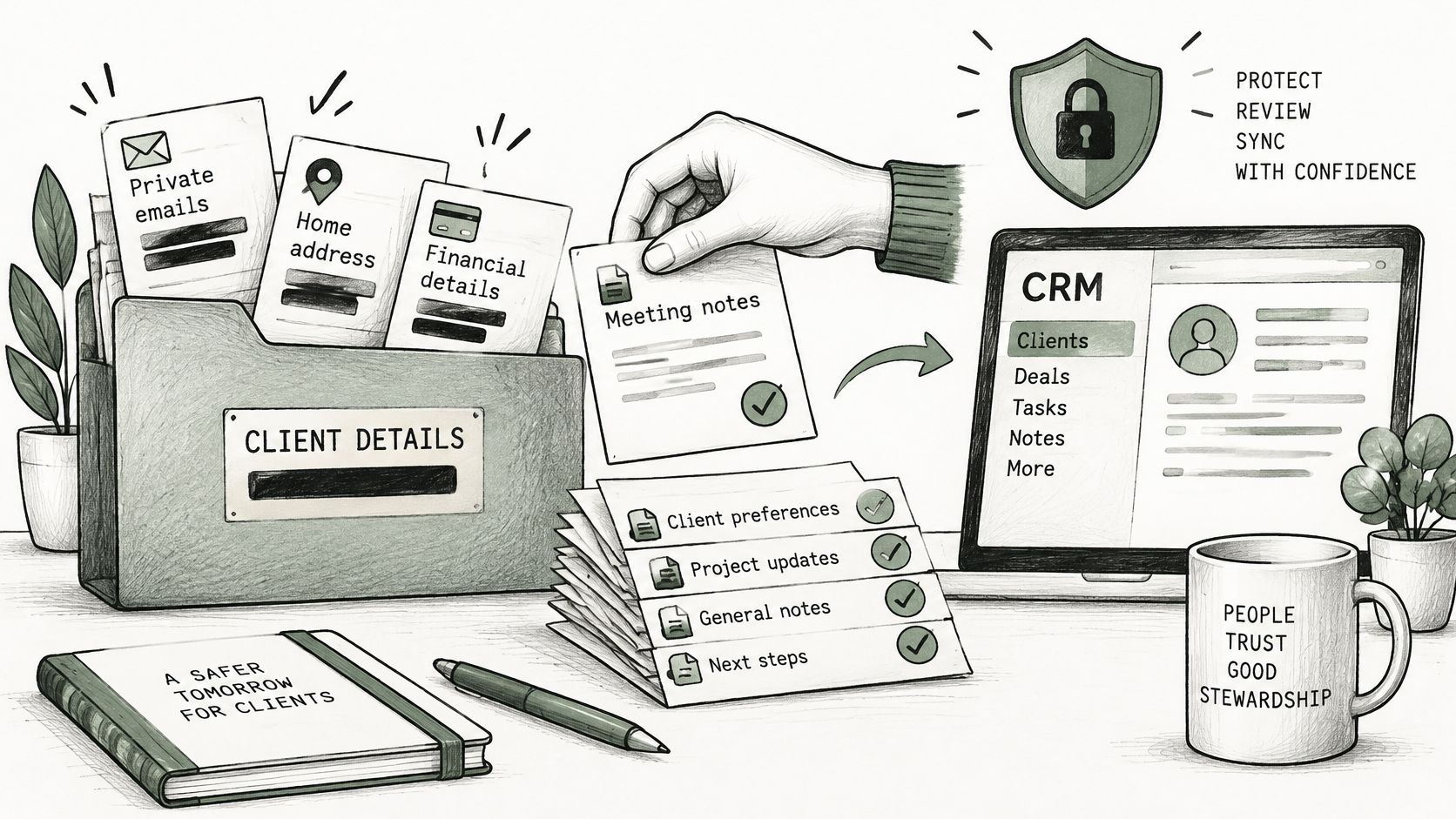
The illustration below shows the shift in thinking. Physical client files had a cabinet, a lock, and a limited number of keys. A CRM needs the same deliberate boundaries.
Define what never enters the CRM
Write an exclusion list before automation runs. Typical entries for a small advisory team include personal correspondence with no business purpose, full account numbers spoken on a call, medical details beyond what an application requires, and legal advice received from outside counsel. Separate personal and business contacts in Outlook so a sync can't pull a personal thread into a client file.
Set restricted fields for what does belong but shouldn't be widely visible. Income figures, for instance, may need to be visible to the advisor and assistant on the file, not to every CRM user. Define an escalation path too. When a call turns up suspected fraud, a complaint, or a vulnerable client situation, the note goes to a supervisor, not into the general activity stream.
Control access at the connection
Grant least-privilege OAuth scopes when connecting Outlook or a call tool. If the workflow only writes reviewed summaries, the connection doesn't need permission to read the entire mailbox. Turn on encryption in transit and at rest, set configurable retention so old content doesn't accumulate forever, and let an administrator control which fields sensitive call content can map into.
Keep an audit trail of what was written, when, and by whom. Selective delivery of reviewed summaries, with named ownership of the final record, gives you a defensible file. Indiscriminate capture gives you a larger one, and a harder conversation if a regulator or a client ever asks why something is in there.
Comparing Ways to Capture Call Follow-Ups
Three capture methods cover most small teams. Each one trades effort against accuracy differently, and the diagram below lays out how they feed the CRM.
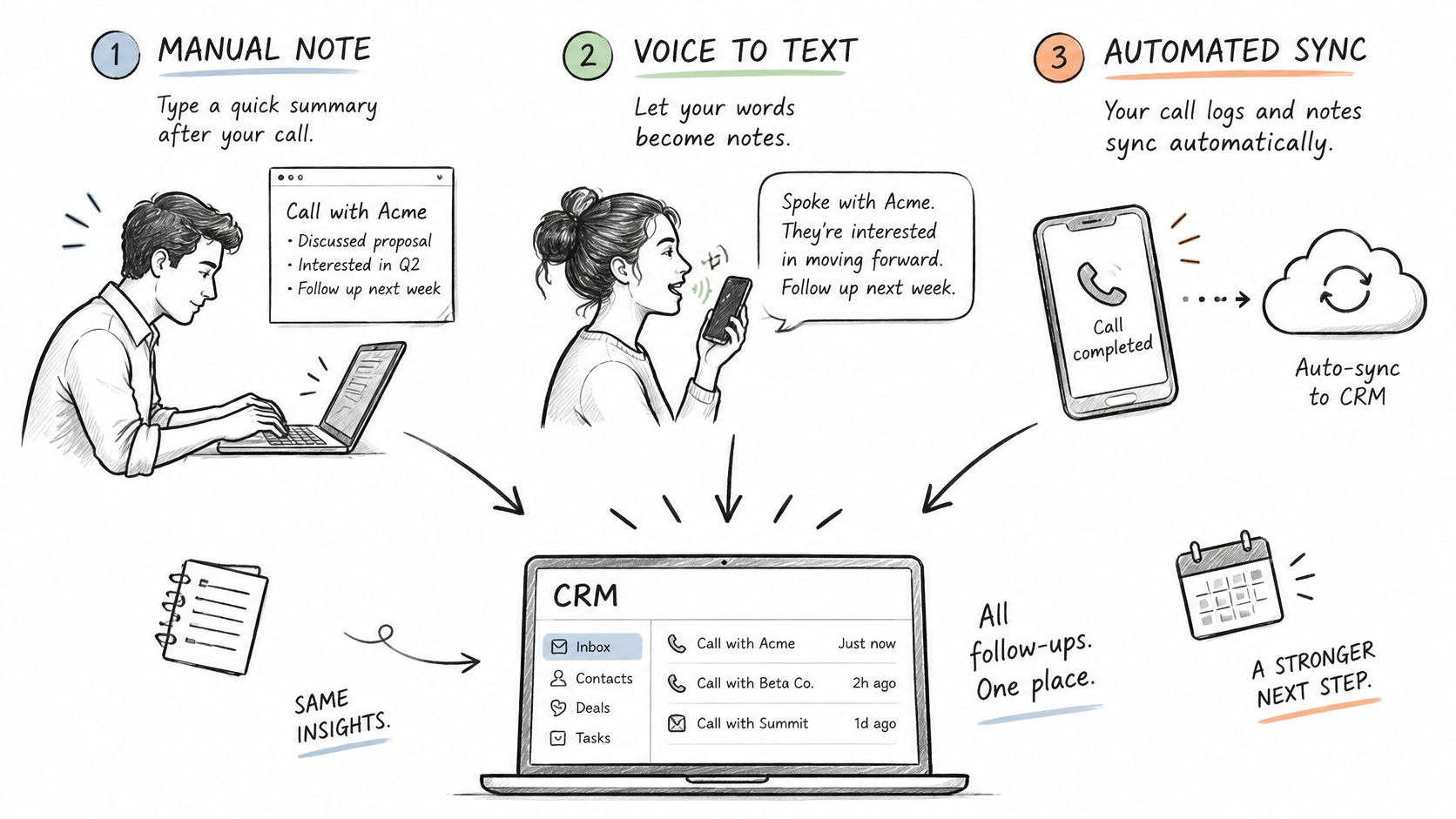
Manual note-taking gives the professional full control. It also competes with listening. Notes taken between calls lose figures first, then conditions, then the exact wording of a commitment. Accuracy depends entirely on how busy the day gets.
Automatic email capture removes the typing for messages. It logs what was sent from Outlook and when. It still misses everything decided by phone, and it files messages without interpreting them. A thread can sit perfectly logged while the opportunity stage stays wrong.
Reviewed call summaries sit between the two. The conversation gets transcribed and summarized, then a person checks the summary before it becomes a CRM note, task, or follow-up draft. Effort drops compared with typing notes from memory, and a human check stays in place before anything reaches the client file. Teams weighing phone tooling often compare this model against call platform options such as those covered in Aircall alternatives, where the review step is the main point of difference.
The short video below shows what a reviewed-summary workflow looks like in practice, from call to follow-up draft.
VoxNote fits the third model. Its iPhone app transcribes incoming and outgoing calls on a professional's existing number through call forwarding, sends a summary by email within seconds of a call ending, and drafts a follow-up the professional reviews before sending. On the Pro plan, summaries can be delivered to a CRM through integrations built by the VoxNote team, with colleague access controls for teams.
Capture is cheap. Verification is the work. Pick the method that makes verification easiest to do every single time, not just on quiet days.
Whichever method you choose, keep the review step explicit. An unchecked summary written straight to the CRM is manual note-taking's error rate at automation's speed.
Testing Your Integration and Taking the Next Step
Test one workflow with real calls before connecting the whole team. Use the outcome you mapped earlier, for example writing a reviewed summary and its agreed next step to an existing contact. Test in a sandbox or on a small set of records first, then run a live pilot with a handful of actual client calls and Outlook emails.
A short pilot checklist
- Confirm the outcome: Restate, in one sentence, what a successful write looks like and where it lands.
- Run a small set: Send a limited batch of calls and emails through the connection, including one deliberate mismatch to see where it goes.
- Review record by record: Compare each CRM entry against its source call or message. Check the contact match, the fields, and the timestamp.
- Measure the basics: Track time-to-log, duplicate rate, field-validation failures, and the share of calls that receive a reviewed CRM update.
Watch the failure points while the pilot runs. Authentication failures, permission errors, and validation rejects tell you where the setup and the workflow disagree. A high duplicate rate points back to matching rules. Low reviewed-update rates point to people, not settings. The reviewer step is either too slow, unclear, or not owned by anyone.
Fix in that order. Permissions and field validation first, because a record that can't write teaches the team to work around the system. Matching rules second. Review ownership third, with training tied to the actual pilot cases rather than a generic walkthrough. Expand only when the small set produces records a colleague can trust without checking the source.
Your first step this week
Pick one client workflow. A mortgage renewal works well because it has a call, a document request, and a dated decision. Write its evidence standard on one page: what becomes a note, a task, a contact update, or an opportunity change, and who verifies each one. Add your exclusion list for content that stays out of the CRM entirely.
Then run a two-week pilot with a single reviewer. One workflow, one reviewer, one short weekly reconciliation. At the end, you'll know your duplicate rate, your logging time, and whether the records hold up when someone else opens the file. That's enough evidence to decide whether to expand the CRM Integration Outlook connection to the full team, tighten the rules, or change the capture method before scaling a problem.
If your client decisions happen on calls and your follow-ups happen in Outlook, VoxNote can transcribe those calls on your existing number, email you a reviewed summary within seconds, and deliver finalized summaries to your CRM on the Pro plan. Start with one workflow, keep the human review step, and visit VoxNote to set it up.